Dialogue Studio - Other Nodes
AnywhereNow Dialogue Studio provided a tool for designing and programming flows. This guide will focus primarily on the other nodes.
Useful other Nodes
|
Icon |
Description |
|---|---|
|
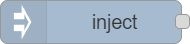
InjectInjects a message into a flow either manually or at regular intervals. |
|
|
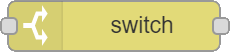
SwitchWith this node you can decide based input where to continue, for example is the customer has not been recognized then ask for customer number, else continue. |
|
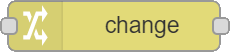
ChangeSet, change, delete or move properties of a message, flow context or global context. The node can specify multiple rules that will be applied in the order they are defined. |
|
|
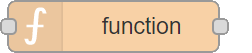
FunctionThis is the node where low-coding coming into place. If you are looking for a feature that cannot be implemented with the simple drag and drop UI, you can use this node to write your own functionality. |
|
|
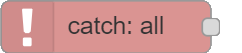
CatchIf a node throws an error whilst handling a message, the flow will typically halt. This node can be used to catch those errors and handle them with a dedicated flow. |

|
DebugDisplays selected message properties in the debug sidebar tab and optionally the runtime log. By default it displays msg.payload, but can be configured to display any property, the full message or the result of a JSONata expression. |
|
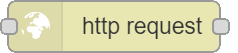
HTTP RequestSends HTTP requests and returns the response. |
|
|
Link inThe node can be connected to any link out node that exists on any tab. Once connected, they behave as if they were wired together. The wires between link nodes are only displayed when a link node is selected. If there are any wires to other tabs, a virtual node is shown that can be clicked on to jump to the appropriate tab. |
|
|
Link outThe node can be connected to any link in node that exists on any tab. Once connected, they behave as if they were wired together. The wires between link nodes are only displayed when a link node is selected. If there are any wires to other tabs, a virtual node is show that can be clicked on to jump to the appropriate tab. |