Configure WebAgent with Dynamics 365 Channel Integration Framework (CIF 1.0)
Before continuing, complete the prerequisites in Prerequisites for CIF 1.0.
Configure CIF in Dynamics 365
-
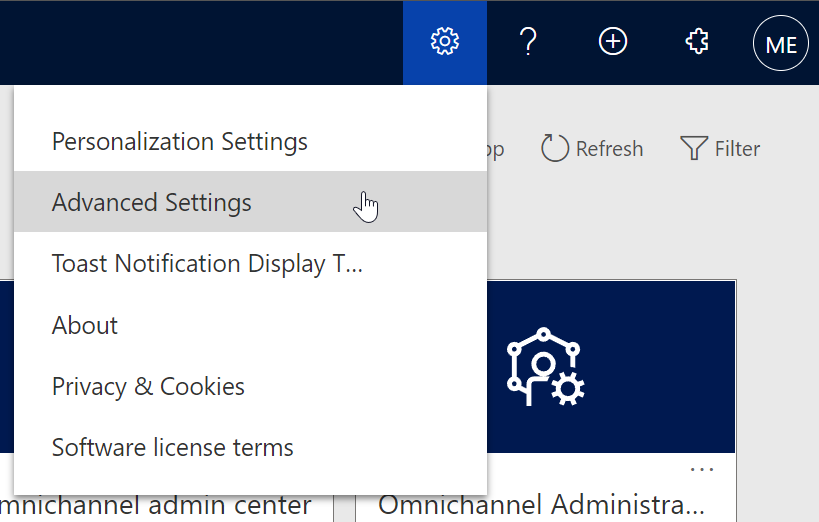
Open your Dynamics and select ‘Advanced Settings’.
-
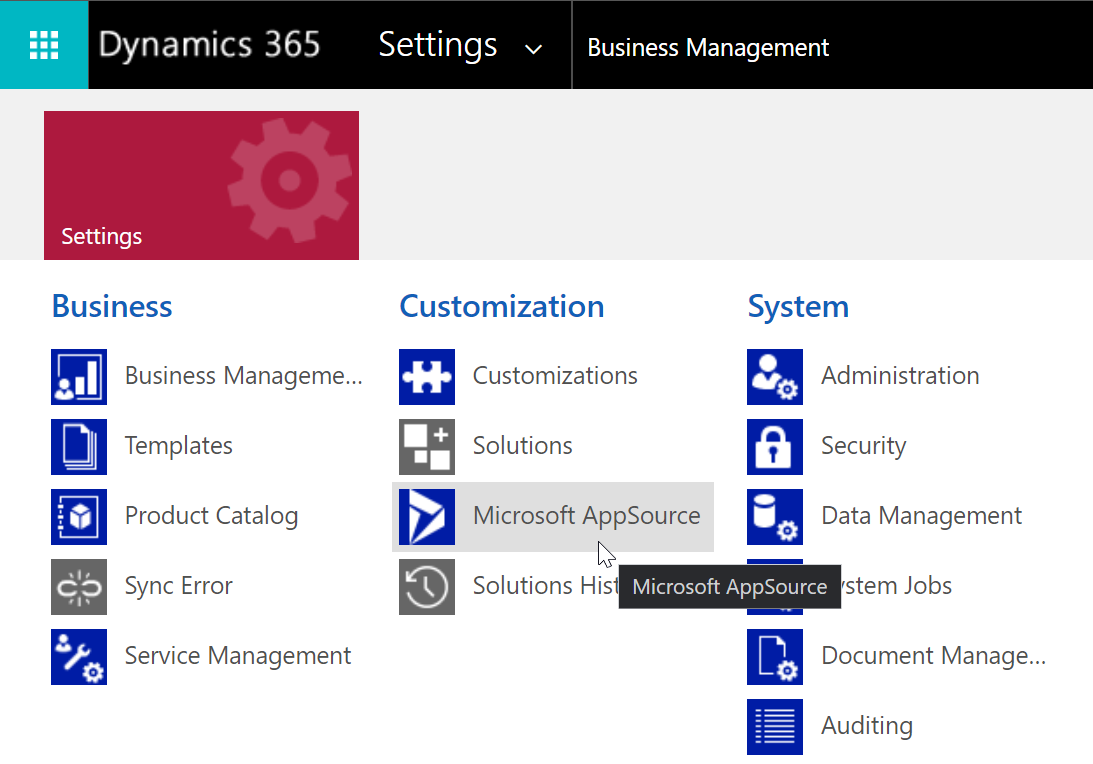
Under the Customization tab open 'Microsoft AppSource'
-
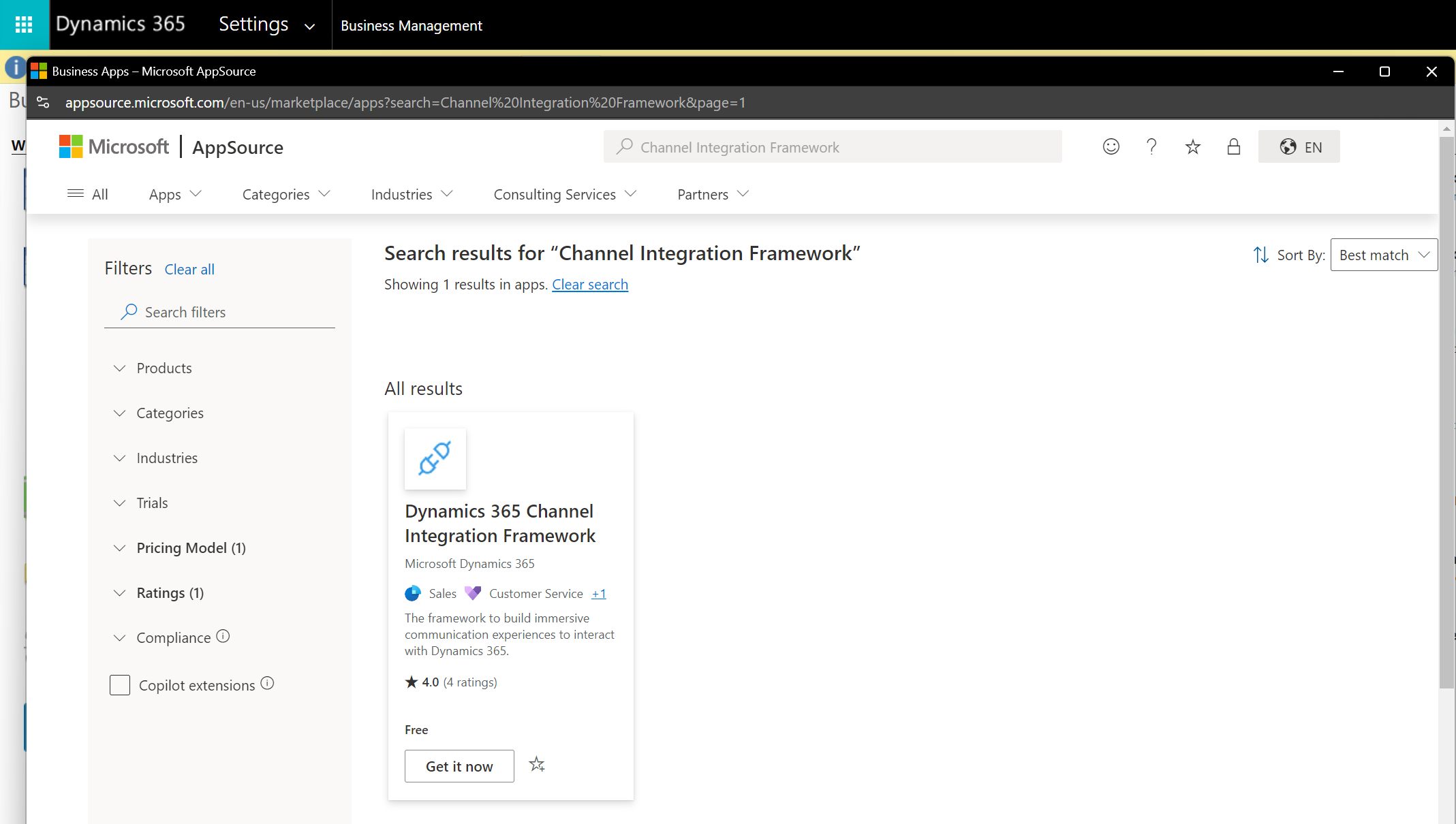
Search for ‘Channel Integration Framework’ and hit ‘Get it now’.
-
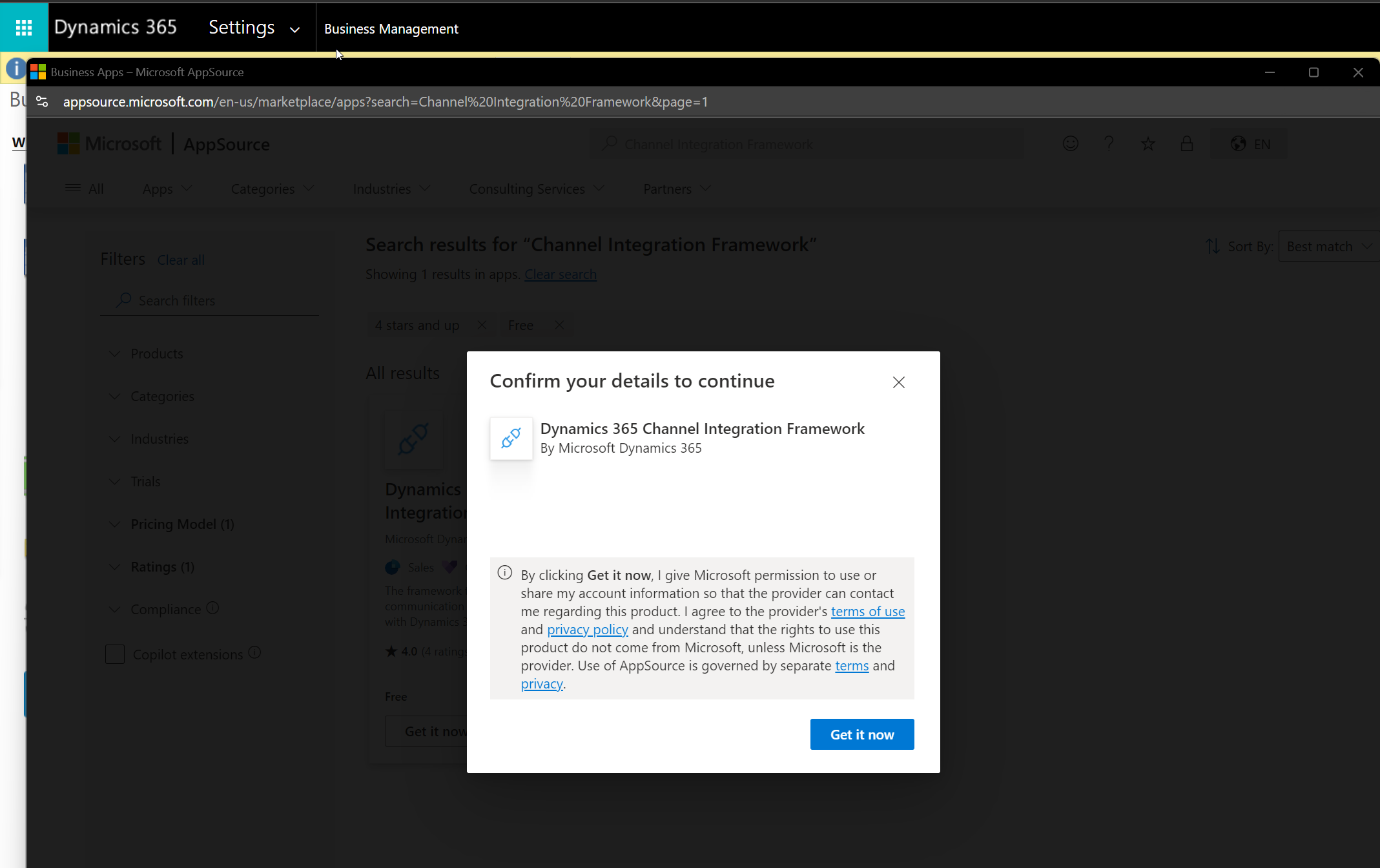
Select Get it now
-
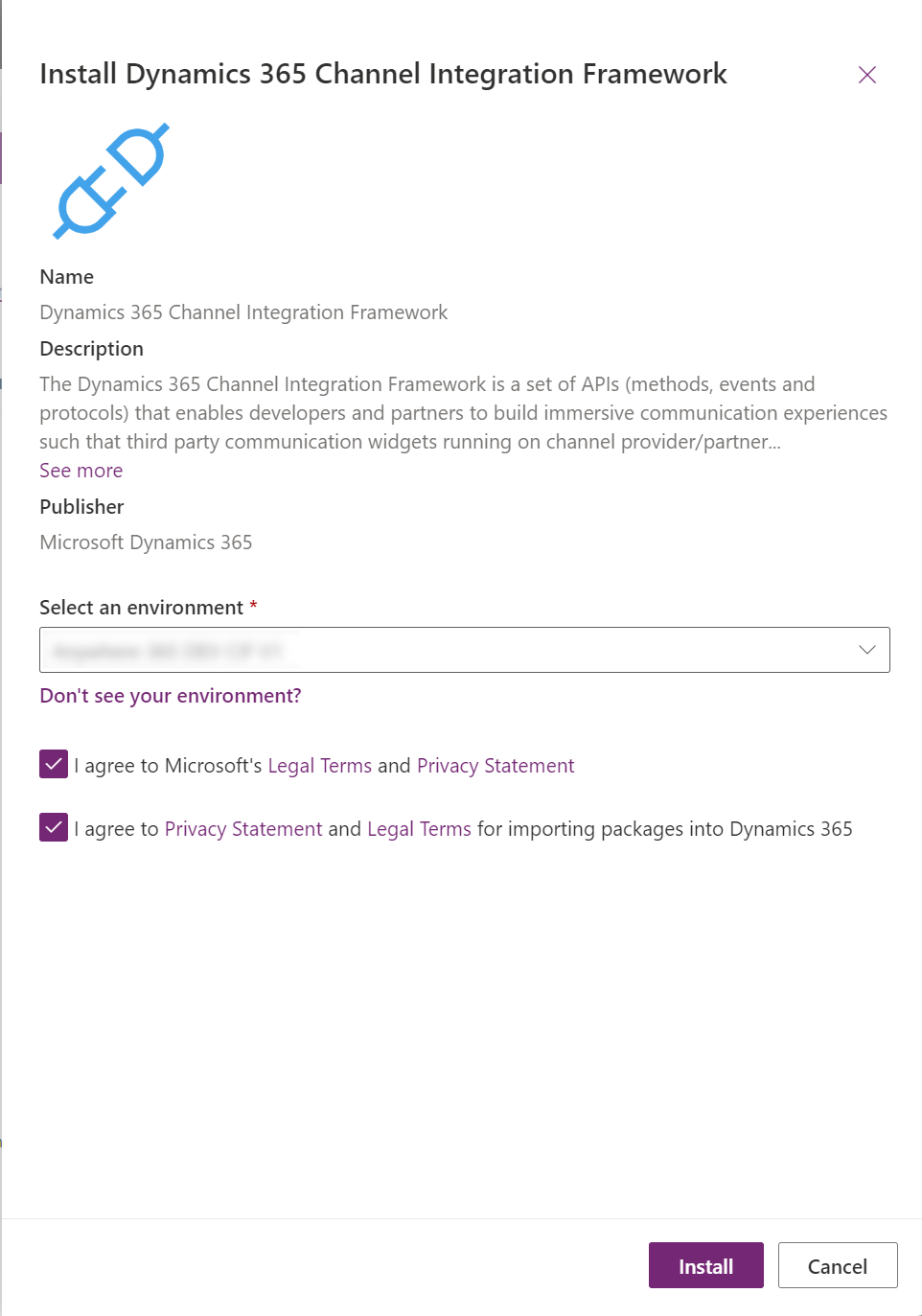
Read the terms and conditions and select the proper Dynamics tenant.
Also select the two check boxes and hit Install.
-
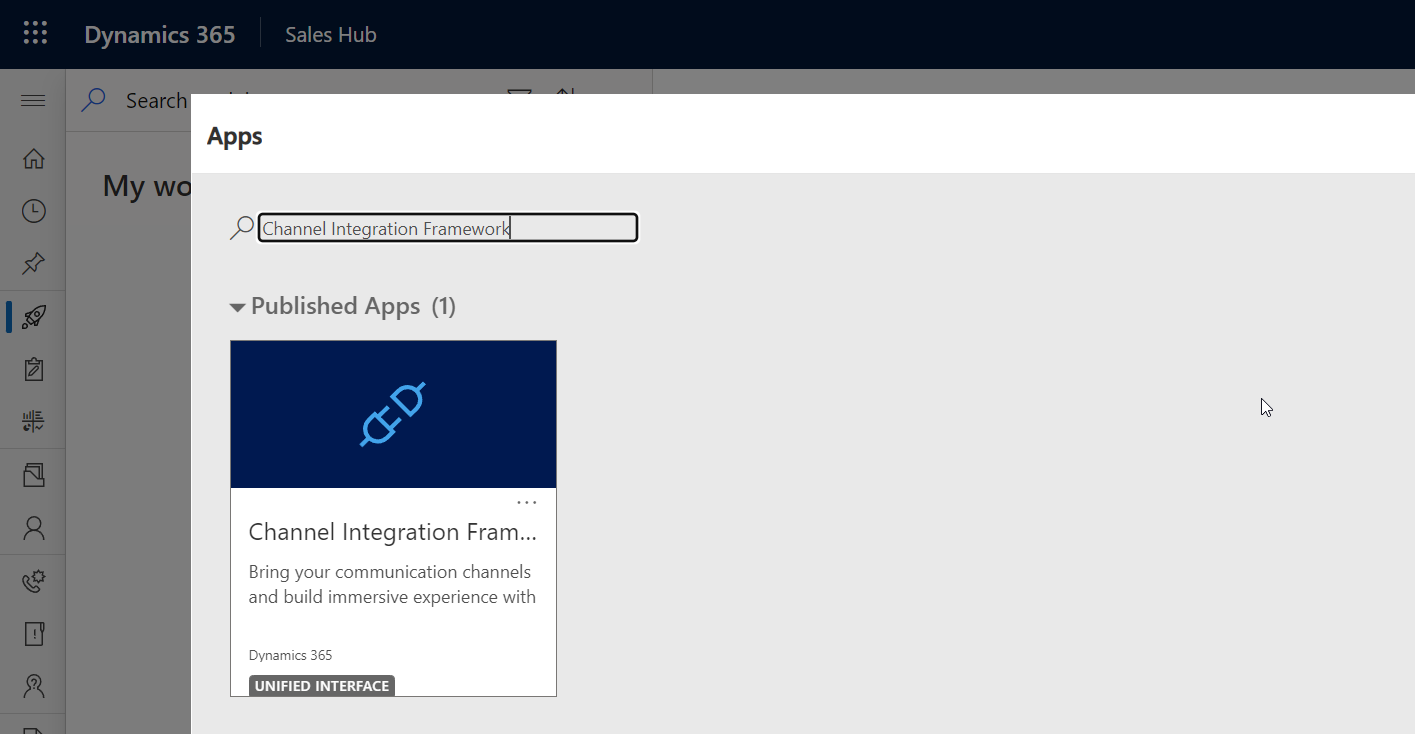
Important: Now log out and log in again, and open the My Apps list. Select the Channel Integration Framework.
-
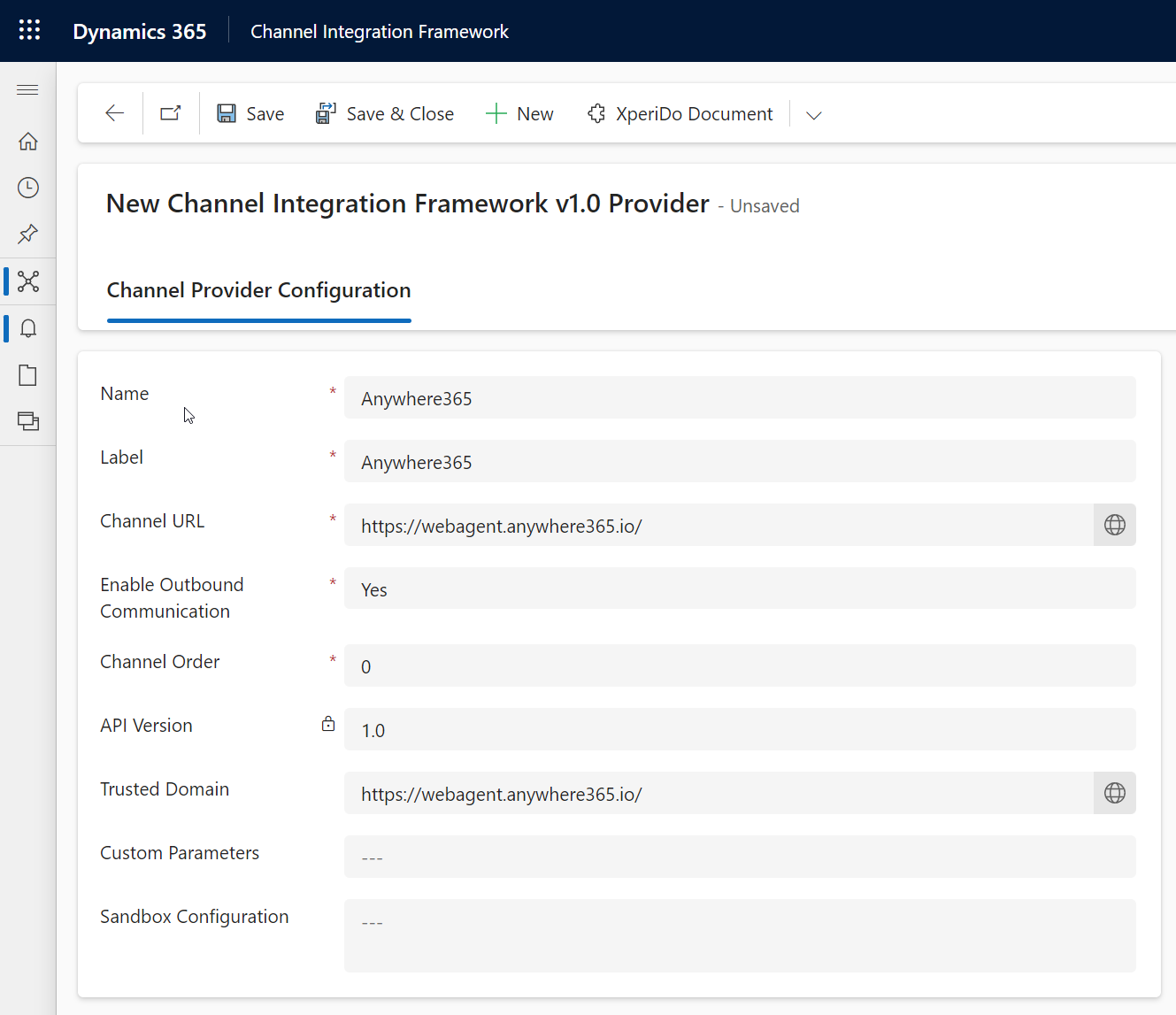
Click on +NEW and fill in the properties as per below.
You may choose for which Channels and Roles the WebAgent should be active.
-
Channel URL* / **: https://webagent.anywhere365.io
Example URLhttps://webagent.anywhere365.io
* Use the WebAgent URL for your connect model.
Dialogue Cloud Neo (Connect)
Global:
https://webagent.anywhere365.io
NORA
https://nora-cus-webagent.anywhere365.io
https://nora-cus-2-webagent.anywhere365.io
https://nora-cus-3-webagent.anywhere365.io
EMEA
https://emea-weu-webagent.anywhere365.io
https://emea-weu-2-webagent.anywhere365.io
https://emea-weu-3-webagent.anywhere365.io
APAC
https://apac-eas-webagent.anywhere365.io
https://apac-eas-2-webagent.anywhere365.io
https://apac-eas-3-webagent.anywhere365.io
Dialogue Cloud Neo (Unify)
EMEA
https://app.emea.anywhere.now/login
APAC
https://app.apac.anywhere.now/login
NORA
** When CIF 1.0 and CIF 2.0 are used side-by-side, you must specify which CTI plugin to load.
Introduced in DC2025.01
Use the plugin name configured for your environment
AnywhereNow enables the Dynamics integration for your environment. For CIF 1.0, the plugin name can be
DynamicsCTIorDynamicsOptimizedCTI. Both provide the same functionality.Set
target-cti-pluginto the name used in your environment. A different name can prevent the Dynamics integration toolbar from loading. See Check your plugin name.Add the query-string parameter
?target-cti-plugin=DynamicsCTI(or?target-cti-plugin=DynamicsOptimizedCTIif that is your configured plugin name). Use&instead of?if the URL already contains other parameters.Example:
https://webagent.anywhere365.io?target-cti-plugin=DynamicsCTI -
Trusted Domain: https://webagent.anywhere365.io/
Important
Use the WebAgent URL for your connect model.
-
Check your plugin name
-
Open WebAgent and your browser's developer tools. Select the Network tab.
-
Sign in to WebAgent, or reload the page if you are already signed in.
-
Filter the requests by
/pluginsand open the matching request's Response tab. -
Find the Dynamics CIF 1.0 plugin and use its name,
DynamicsCTIorDynamicsOptimizedCTI, as the value oftarget-cti-pluginin the Channel URL.
-
More information on Roles and CIF can be found on:
https://learn.microsoft.com/en-us/dynamics365/customer-service/channel-integration-framework/configure-channel-provider-channel-integration-framework