Configure WebAgent with Dynamics 365 Channel Integration Framework (CIF 2.0)
Introduced in DC2023.04.
Before continuing, complete the prerequisites in Prerequisites for CIF 2.0.
Add an Active Channel Provider for CIF2
-
Navigate and login on Dynamics 365
-
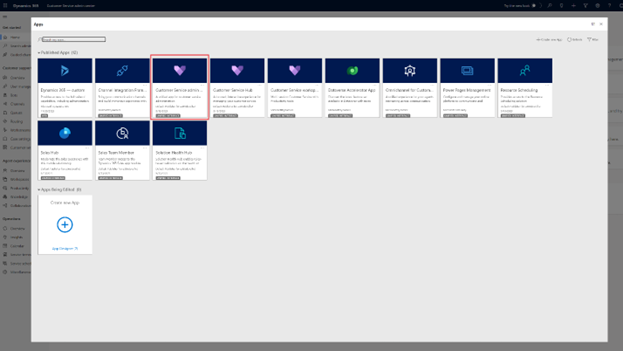
Open the My Apps list.
Select the Copilot Service Admin Center
-
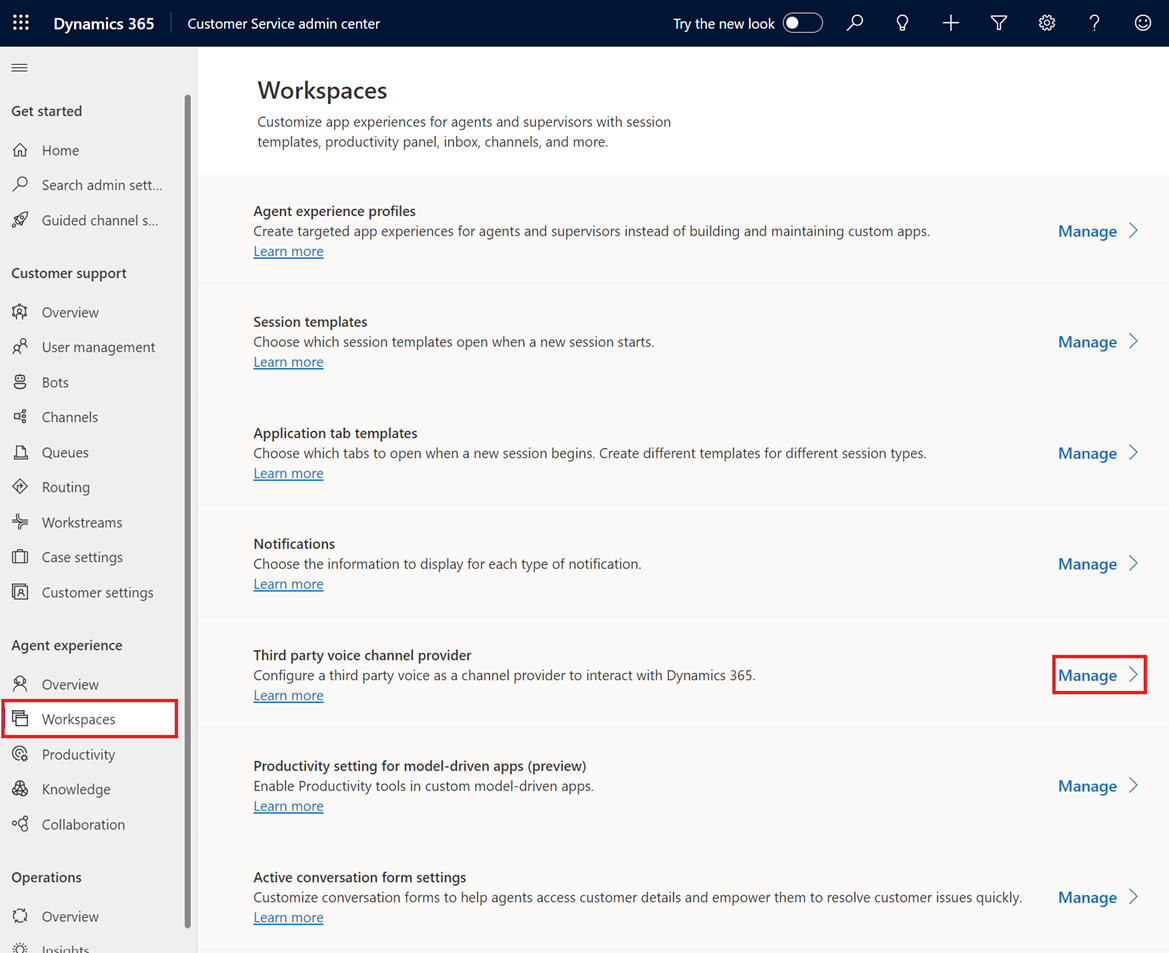
Under Support experience click Workspaces. Then under ‘Third party voice channel provider’ click Manage.
-
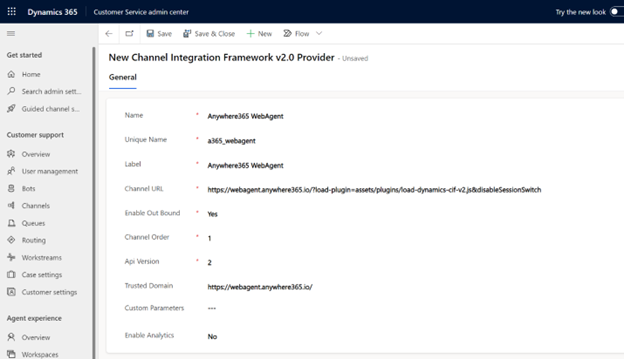
Click on +NEW and fill in the properties as per below.
-
Name: Dialogue Cloud WebAgent
-
Unique Name: a365_webagent
-
Label: Dialogue Cloud WebAgent
-
Channel URL * / **:
https://webagent.anywhere365.io/?load-plugin=assets/plugins/load-dynamics-cif-v2.js&disableSessionSwitch* Use the WebAgent URL for your connect model.
Dialogue Cloud Neo (Connect)
Global:
https://webagent.anywhere365.io?load-plugin=assets/plugins/load-dynamics-cif-v2.js&disableSessionSwitchNORA
https://nora-cus-webagent.anywhere365.io?load-plugin=assets/plugins/load-dynamics-cif-v2.js&disableSessionSwitchhttps://nora-cus-2-webagent.anywhere365.io?load-plugin=assets/plugins/load-dynamics-cif-v2.js&disableSessionSwitchhttps://nora-cus-3-webagent.anywhere365.io?load-plugin=assets/plugins/load-dynamics-cif-v2.js&disableSessionSwitchEMEA
https://emea-weu-webagent.anywhere365.io?load-plugin=assets/plugins/load-dynamics-cif-v2.js&disableSessionSwitchhttps://emea-weu-2-webagent.anywhere365.io?load-plugin=assets/plugins/load-dynamics-cif-v2.js&disableSessionSwitchhttps://emea-weu-3-webagent.anywhere365.io?load-plugin=assets/plugins/load-dynamics-cif-v2.js&disableSessionSwitchAPAC
https://apac-eas-webagent.anywhere365.io?load-plugin=assets/plugins/load-dynamics-cif-v2.js&disableSessionSwitchhttps://apac-eas-2-webagent.anywhere365.io?load-plugin=assets/plugins/load-dynamics-cif-v2.js&disableSessionSwitchhttps://apac-eas-3-webagent.anywhere365.io?load-plugin=assets/plugins/load-dynamics-cif-v2.js&disableSessionSwitchDialogue Cloud Neo (Unify)
EMEA
https://app.emea.anywhere.now/login?load-plugin=assets/plugins/load-dynamics-cif-v2.js&disableSessionSwitchAPAC
https://app.apac.anywhere.now/login?load-plugin=assets/plugins/load-dynamics-cif-v2.js&disableSessionSwitchNORA
https://app.nora.anywhere.now/login?load-plugin=assets/plugins/load-dynamics-cif-v2.js&disableSessionSwitch** When CIF 1.0 and CIF 2.0 are used side-by-side, you must specify which CTI plugin to load.
Introduced in DC2025.01
Add the query-string parameter
?target-cti-plugin=DynamicsV2CTI(or prepend it with&if the URL already contains other parameters).Example:
https://webagent.anywhere365.io/?load-plugin=assets/plugins/load-dynamics-cif-v2.js&disableSessionSwitch&target-cti-plugin=DynamicsV2CTIFor the CIF 1.0 Channel URL, use the plugin name configured for your environment. See Check your plugin name.
-
Enable Out Bound: Yes
-
Channel Order: 1
-
API Version: 2.0
-
Trusted Domain *:
https://webagent.anywhere365.io/ -
* Use the WebAgent URL for your connect model.
Dialogue Cloud Neo (Connect)
Global:
https://webagent.anywhere365.ioNORA
https://nora-cus-webagent.anywhere365.iohttps://nora-cus-2-webagent.anywhere365.iohttps://nora-cus-3-webagent.anywhere365.ioEMEA
https://emea-weu-webagent.anywhere365.iohttps://emea-weu-2-webagent.anywhere365.iohttps://emea-weu-3-webagent.anywhere365.ioAPAC
https://apac-eas-webagent.anywhere365.iohttps://apac-eas-2-webagent.anywhere365.iohttps://apac-eas-3-webagent.anywhere365.ioDialogue Cloud Neo (Unify)
EMEA
https://app.emea.anywhere.now/loginAPAC
https://app.apac.anywhere.now/loginNORA
https://app.nora.anywhere.now/login
-
-
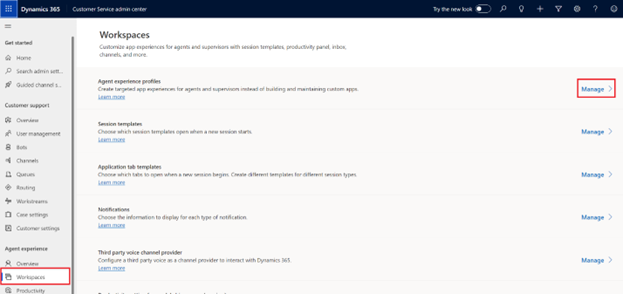
Go back to Workspaces and select Manage under Experience profiles
-
Click on + NEW and fill in the properties as per below.
-
Name: WebAgent profile
-
Unique name: a365_webagent_profile
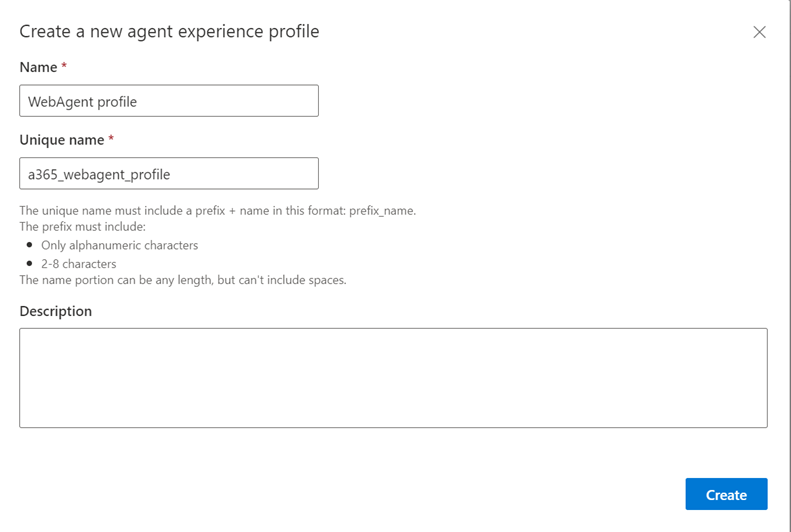
After creation, the profile will be opened automatically
-
-
Under Users, assign agents that will be using the WebAgent
-
Click Edit under Channel providers and select Dialogue Cloud WebAgent as the Third party voice channel provider.
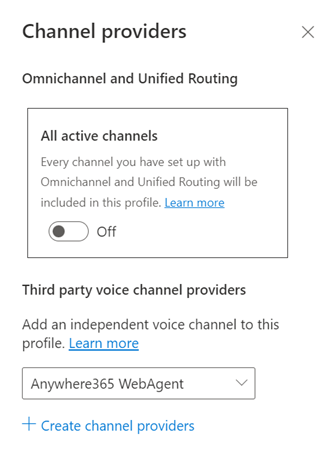
Save the configuration.
Add WebAgent Application Tabs Templates
-
Navigate to Support experience > Workspaces > Application tab templates > Manage
-
Click on + NEW
-
Add WebAgentEntityRecord
Name: WebAgentEntityRecord
Unique Name: a365_webagententityrecord
Title: {placeholder}
Page Type: Entity Record
Can close: Yes
-
Add WebAgentSearch
Name: WebAgentSearch
Unique Name: a365_webagentsearch
Title: {customerName}
Page Type: Search
Can close: Yes
-
Add WebAgent Session Templates
-
Navigate to Support experience > Workspaces > Session templates > Manage
-
Click on +NEW
-
Add WebAgentSession
Name: WebAgentSession
Unique Name: a365_webagentsession
Type: Generic
Title: {customerName}
Communication panel mode: Docked
Anchor Tab: WebAgentSearch
-