Example configuration Microsoft Power Automate to automate routing based on Microsoft Entra ID Groups
This example shows you how you can use Microsoft Power Automate to automate your A Unified Contact Center, or UCC, is a queue of interactions (voice, email, IM, etc.) that are handled by Agents. Each UCC has its own settings, IVR menus and Agents. Agents can belong to one or several UCCs and can have multiple skills (competencies). A UCC can be visualized as a contact center “micro service”. Customers can utilize one UCC (e.g. a global helpdesk), a few UCC’s (e.g. for each department or regional office) or hundreds of UCC’s (e.g. for each bed at a hospital). They are interconnected and can all be managed from one central location. routing.
Prerequisites
For this scenario we will be using:
- Power Automate
- SharePoint Online
- Formerly known as Azure Active Directory (or Azure AD, or AAD)
Configuration
-
Navigate to Microsoft Power Automate.
-
Click "My Flows":
-
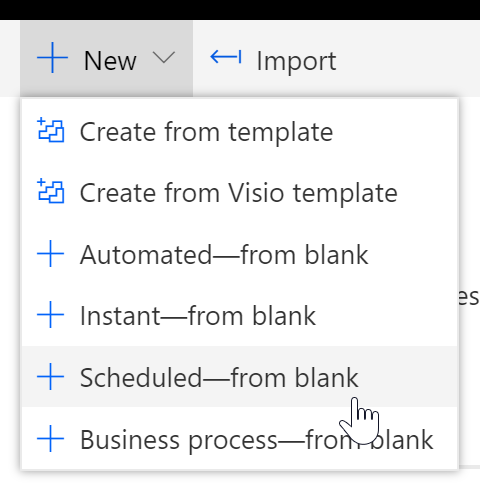
Click "New" and "Scheduled- from Blank":
-
Set schedule, for example every day:

-
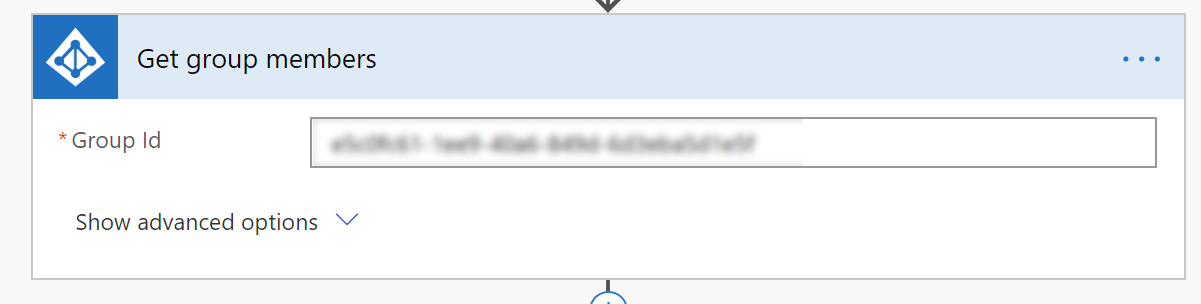
Add action "Get group members", from Microsoft Formerly known as Azure Active Directory (or Azure AD, or AAD).
-
Fill in the Group ID.
Note
Group ID can be found on Microsoft Entra ID portal, https://entra.microsoft.com/#view/Microsoft_AAD_IAM/TenantOverview.ReactView
-
-
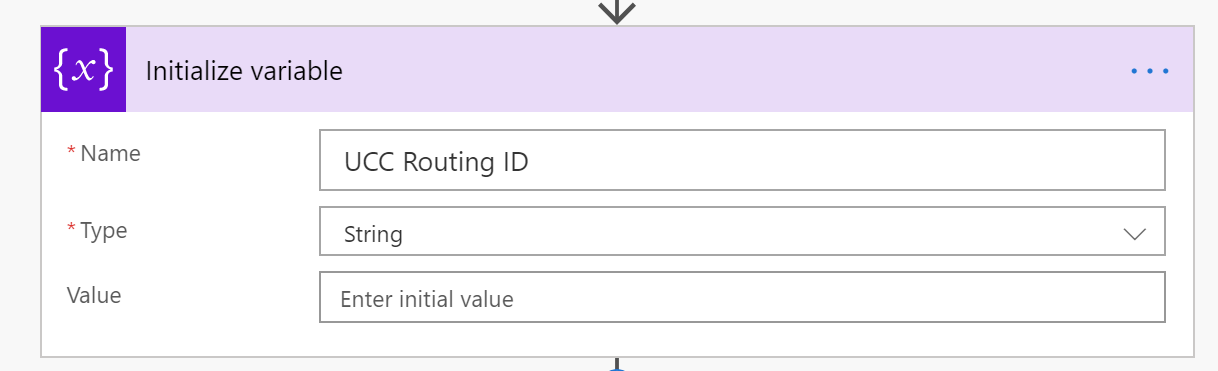
Add action "Initialize variable".
-
Name = UCC Routing ID
-
Type = String
-
-
Add action "Apply to each"
-
Output = Group Members

-
-
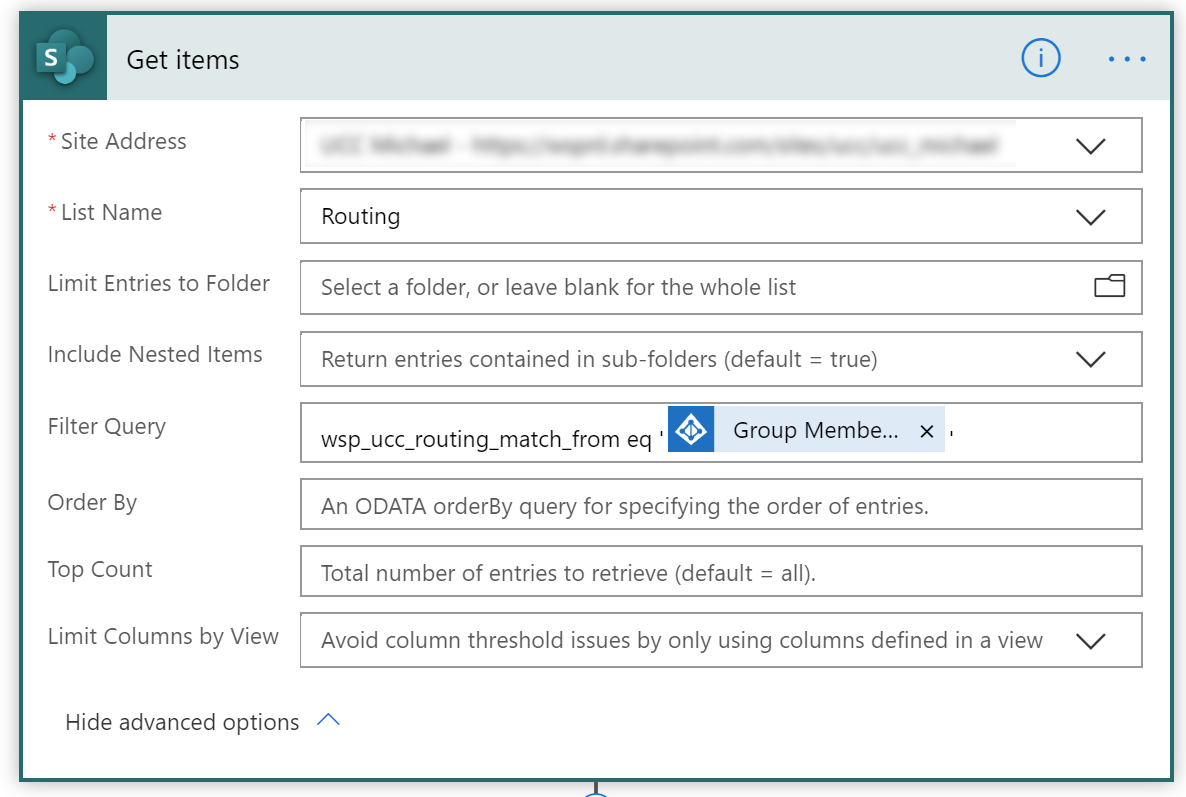
Add action "Get Items", from SharePoint
-
Site Address = Your UCC's SharePoint Site
-
List = Routing
-
Filter Query:
Expressionwsp_ucc_routing_match_from eq '@{items('Apply_to_each')?['mail']}'
-
-
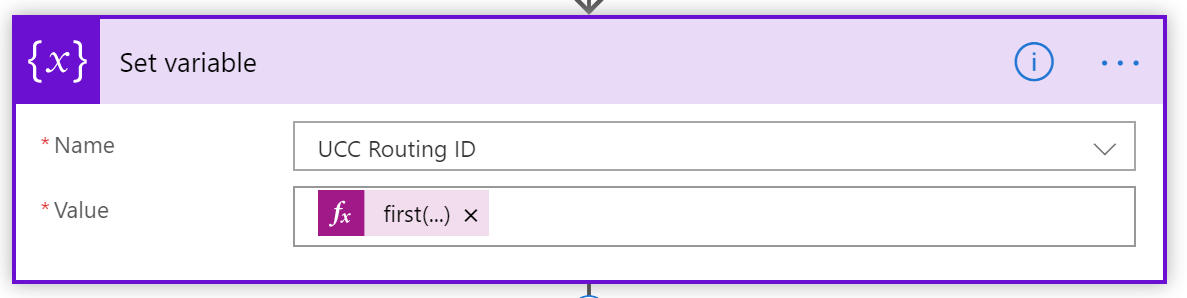
Add action "Set Variable"
-
Name = UCC Routing ID
-
Value:
Expressionfirst(body('Get_items')?['value'])?['id']
-
-
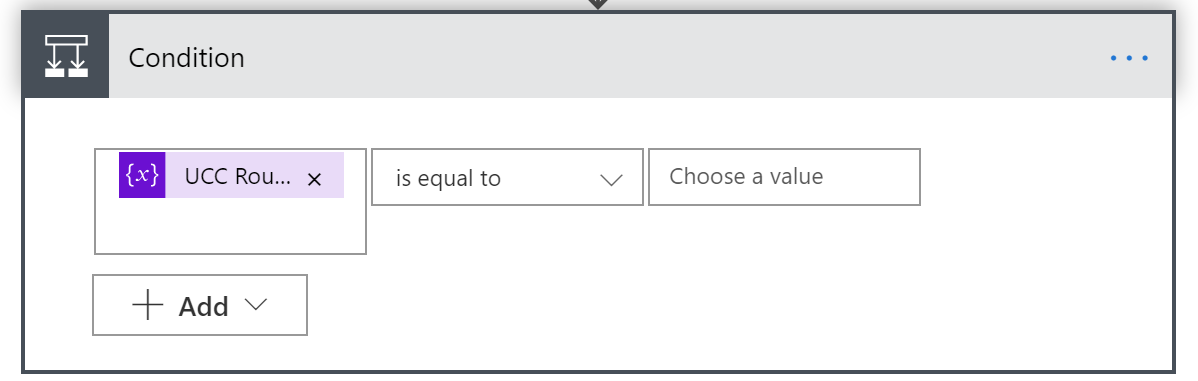
Add action "Condition"
-
Value 1:
Expression@variables('UCC Routing ID') -
Match = is equal to
-
Value 2 =
-
-
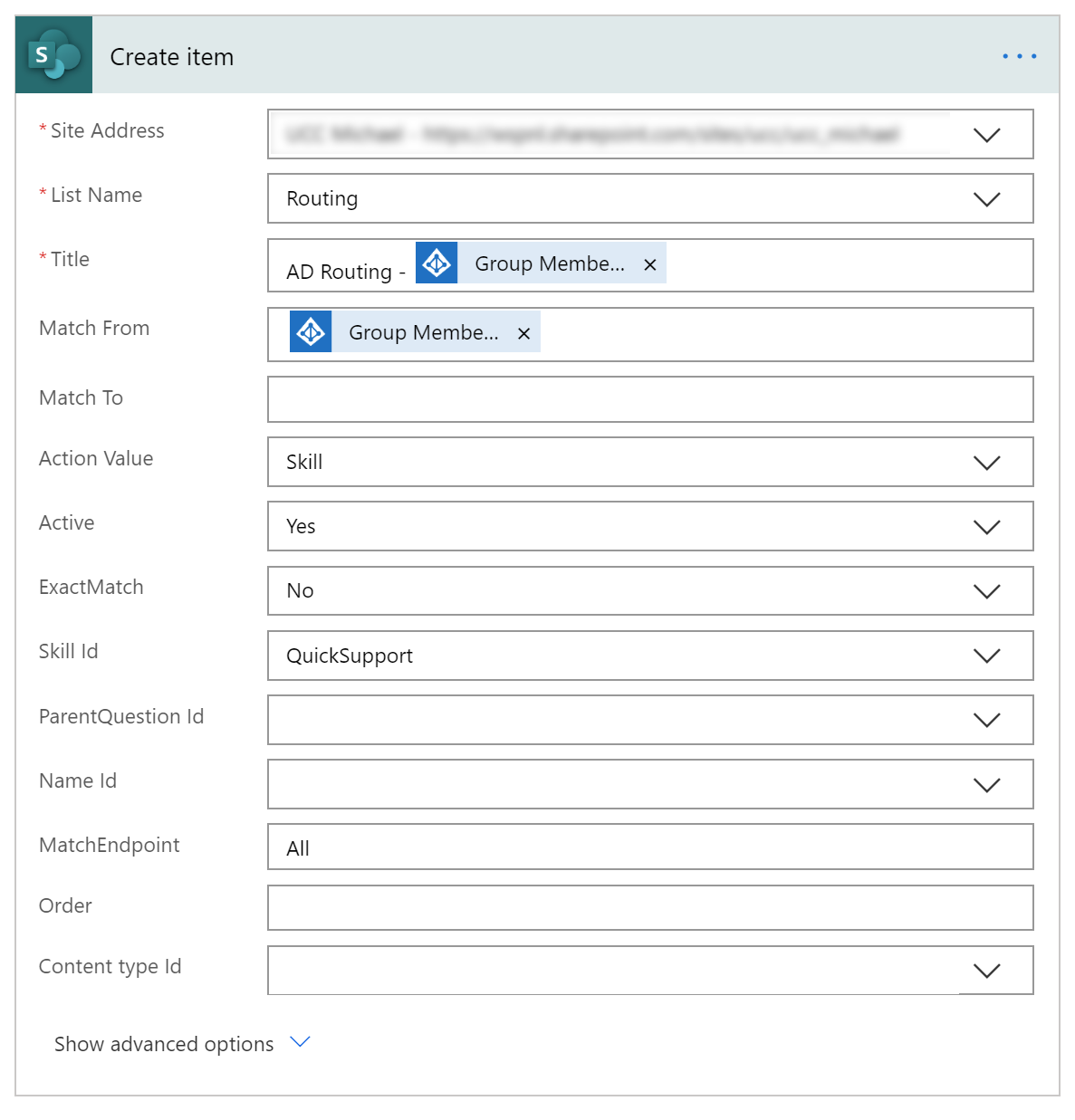
Add action "Create Item" of SharePoint, in if Yes.
-
Site Address = Your UCC's SharePoint Site
-
List = Routing
-
Title:
ExpressionAD Routing - @{items('Apply_to_each')?['userPrincipalName']} -
Match From: (can be any field in this example we use mail, to route on Microsoft Teams)
Expression@{items('Apply_to_each')?['mail']} -
Action Value = Skill (can be replaced with any other action)
-
Skill id = Name of the Skill you want to route to.
-
Action Value = Skill (can be replaced with any other action)
-
MatchEndpoint = All
-