AnywhereNow SharePoint UCC Site Creator
Important (added 29-10-2025)
We want to bring your attention to an announcement recently published by Microsoft. Please read study carefully and assess whether this is applicable to your tenant. In an effort to move customers off of classic site and publishing features Microsoft has terminated some SharePoint publishing functionality starting September 15th 2025, used by our current A Unified Contact Center, or UCC, is a queue of interactions (voice, email, IM, etc.) that are handled by Agents. Each UCC has its own settings, IVR menus and Agents. Agents can belong to one or several UCCs and can have multiple skills (competencies). A UCC can be visualized as a contact center “micro service”. Customers can utilize one UCC (e.g. a global helpdesk), a few UCC’s (e.g. for each department or regional office) or hundreds of UCC’s (e.g. for each bed at a hospital). They are interconnected and can all be managed from one central location..Creator scripts.
A method to temporarily delay this until March 15th 2026 is mentioned. More information can be found in Microsoft Message Center article: MC1117115.
(Text copied below for readers without access to Microsoft Message Center)
Read More
** (Unfortunately The method below can only be run with Microsoft SPO-Management Shell. The required commands do not all have an alternative in the PnP.Powershell suite - see Link GitHub issue)
** (Text copied below for readers without access to Microsoft Message Center)
Updated September 2, 2025: Upcoming SharePoint Online changes may impact your organization. Please review the below.
We are implementing the following changes to custom scripting and classic publishing in SharePoint Online.
1. Disablement of custom scripting
Custom scripting will be disabled by default (setting DenyAddAndCustomizePages to 1 or $true) for sites created with the following templates:
BLANKINTERNETCONTAINER#0 = Classic Publishing Portal Site
CMSPUBLISHING#0 = Classic Publishing Site
BLANKINTERNET#0 = Classic Publishing Site Blank
CSPCONTAINER#0 = SharePoint Embedded Site
NOTE:
Existing classic publishing sites created with the templates listed above will have custom scripting disabled by default.
Disabling custom scripting does not affect the execution of scripts that have already been added to a site or page.
Refer to this documentation to learn more about the security considerations of ungoverned scripting.
2. Ability to set site property bag valued without requiring custom scripting enablement.
Users no longer need to set DenyAddAndCustomizePages to $false or 0 (i.e. enable custom scripting) in a site to manage site property bag values. We have introduced a new AllowWebPropertyBagUpdateWhenDenyAddAndCustomizePagesIsEnabled setting at the site level and at the tenant level to allow adding/managing site property bag values. Please see documentation here for tenant level setting and here for the site level setting.
3. Classic publishing sites creation and feature activation changes
Users will no longer be able to create new classic publishing related site collections or activate publishing features in existing site collections. This applies to both UX and API interactions.
Sites collections with the following templates cannot be created:
BLANKINTERNETCONTAINER#0 = Publishing Portal Site
CMSPUBLISHING#0 = Publishing Site
BLANKINTERNET#0 = Publishing Site Blank
ENTERWIKI#0 = Enterprise Wiki
SRCHCEN#0 = Enterprise Search Center
SPSSITES#0 = Site Directory
SPSNHOME#0 = News Home Site
PRODUCTCATALOG#0 = Product Catalog
SPSREPORTCENTER#0 = Report Center
SPSTOPIC#0 = Topic Area Template
Existing classic publishing enabled site collections are unaffected and can continue regular usage, including creation of sub sites.
When this will happen
Both changes, the extended custom scripting governance and the new classic publishing restrictions, will take effect starting September 15, 2025.
How this will affect your organization
When custom scripting is disabled in classic publishing sites, users will no longer be able to use script editor web parts, create custom master pages or page layouts, and utilize several other features. More details on features affected when custom scripting is disabled can be viewed in this documentation.
With the change to stop the creation of new classic publishing site collections and publishing feature activation, SharePoint admins will no longer be able to create new classic publishing enabled site collections or enable publishing features at site collection level.
What you need to do to prepare
We recommend taking the following actions to prepare for these upcoming changes.
1. Inform owners of the classic publishing sites in your organization of these upcoming changes. Promote switching to use of Modern sites. Refer to this guide.
2. To temporarily opt out of the custom scripting enforcement in classic publishing sites for your tenant until March 15, 2026, use the following PowerShell command:
Set-SPOTenant -DelayDenyAddAndCustomizePagesEnforcementOnClassicPublishingSites $true
3. To temporarily opt out of custom scripting enforcement for a specific site (with any template) with tenant admin approval (effective for 24 hours), use the following PowerShell command:
Set-SPOSite <SiteURL> -DenyAddAndCustomizePages $false
4. If you need to allow the creation of new classic publishing site collections or enable publishing feature activations, use the following PowerShell command set the flag to allow.
Set-SPOTenant -AllowClassicPublishingSiteCreation $true
NOTE:
You need to install the latest (16.0.26211.12010 or higher) SharePoint Online Management Shell in order to run the commands above.
The DelayDenyAddAndCustomizePagesEnforcementOnClassicPublishingSites command is scheduled to end starting on March 15, 2026, while all other commands are expected to remain functional beyond that date.
Compliance considerations
There is no impact or change to compliance.
Referenced content
Security considerations of allowing custom script - SharePoint in Microsoft 365 | Microsoft Learn
Allow or prevent custom script - SharePoint in Microsoft 365 | Microsoft Learn
SharePoint modernization guidance | Microsoft Learn
Legacy manual
Below information is considered a legacy manual description. New installs of AnywhereNow UCC sites on SharePoint Online should follow the steps in the article: Creating a OneUCC Site using PnP.PowerShell
Supplemental Announcement 1 (late 2022): Microsoft SharePoint limits and subsites:
Read more
Update 25-january-2023: Starting in February 2023 Microsoft will start enforcing hard limits in SharePoint Online when creating new SubSites, lists and libraries in a Site Collection to overcome their growing performance challenges. See Microsoft Message Center MC405984 (only visible to Microsoft 365 Administrator accounts or see our FAQ for a copy of a recent text.)
To see how this may impact your (future) deployments and what remedies we have added since UCC.Creator v8.2.0.7
The enforced limits are:
-
2000 SubSites per Site Collection
and
-
2000 lists and libraries per SubSite.
This means our customers (unless they exceed the 2000 UCC's in a single Site Collection) can continue using the below mentioned "Legacy" model of our Ucc.Creator (albeit with the extra parameter -UseSubsites when running the .ps1 scripts).
NOTE! Ucc.creator scripts earlier then v8.2.0.7 do not have this capability!
Secondly and separate from the above hard limit enforcement, there is also a recommendation by Microsoft to eliminate the use of SubSites altogether to improve on SharePoint performance and as they state: "each unit of work should get a separate site collection". This will not yet be enforced by Microsoft by February 2023, but may be at a later date. (with SubSites disabled, grouping different Site Collections together for functional and/or administrative reasons (which for UCC's is a common practice), Microsoft already suggests to prepare/use Hub Sites. Learn More - Microsoft)
AnywhereNow, a consumer of subsites, lists and libraries, has prepared for both the recommendation and limits and has made adaptations on their UCC Site Creator tool:
Starting with Ucc.Creator 8.2.0.7 the default behavior is that every new UCC (Site) will be built in its own Site Collection (root site) without the necessity, or even option, for subsites (because this may already have been disabled by your administrator or tenant subscription if you need to adhere to Microsoft’s recommendation).
It is still possible to work with SubSites enabled and use our new Ucc.Creator in a Legacy SubSite model with an additional parameter for the .ps1 scripts (-UseSubsites).
Due to the new insights on Microsoft's approach to hard limit enforcement, what previously we called "Preferred" model is now renamed to "OneUCC" model.
Supplemental Announcement 2 (late 2023): Microsoft SharePoint Azure-ACS commonly known as the acronym for Azure Communication Services, Microsoft's multichannel communication API in Azure for voice, video, chat, text messaging/SMS, email, and more to applications. Not te be confused with Azure Access Control Services (AACS) a deprecating authentication service of Microsoft, also sometimes abbreviated to ACS. retirement:
Read more
On November 27th 2023 Microsoft announced the impending retirement of Azure Access Control Services "as auth platform for SharePoint online" in Message Center announcement MC693863.
In short you should start planning to move your UCC SharePoint authorization methods away from SharePoint AppId and AppSecret credentials to a Formerly known as Azure Active Directory (or Azure AD, or AAD) App Only model before the retirement dates mentioned by Microsoft.
Our advice is to use the existing AnywhereNowOneUCC model already described on this site. Further guides to help you out will follow in due time.
Because MC's are only visible to Microsoft 365 admins, for your convenience please find a copy of the text (at time of writing) of the Microsoft announcement below:
Message Summary
Since the first use of Azure ACS (Access Control Services) by SharePoint in 2013, Microsoft has evolved the authorization and authentication options for SharePoint Online via Microsoft Formerly known as Azure Active Directory (or Azure AD, or AAD) (previously known as Azure AD). Using Microsoft Entra ID as auth platform for your SharePoint Online customizations will provide your applications the most secure, compliant and future proof model. With our continued investment in Microsoft Entra ID, Microsoft is retiring the use of Azure ACS as auth platform for SharePoint Online.
Key Points:
Major: Retirement
Timeline:
Starting November 1st, 2024, new tenants will not be able use Azure ACS.
Starting April 2nd, 2026, Microsoft will remove the ability use SharePoint ACS for existing tenants.
Action: Review and assess impact
How this will affect your organization
If your organization still uses Azure ACS to grant custom developed or third party applications access to SharePoint Online, they will no longer have access after April 2nd, 2026. We recommend customers to update their customizations to use Microsoft Entra ID and ask their solution vendors to do the same.
What you need to do to prepare
You will want to notify your Azure ACS users and developers. Update your user training and prepare your help desk.
For admins
Use the Microsoft 365 Assessment tool to scan your tenants for Azure ACS usage.
Review the guidance for migrating from Azure ACS to Microsoft Entra ID.
There will not be an option to extend Azure ACS usage for SharePoint Online beyond April 2nd 2026.
Learn more
Support update for the retirement of Azure ACS for SharePoint Online in Microsoft 365.
Step 1: Prepare your SharePoint
SharePoint Preparations for AnywhereNow UCC Creator
Time to execute: approx. 10 min.
Tip
A NEW quicker install method for creating OneUCC sites with AppOnly and certificate sites using PnP.Powershell and more restricted local permissions (selected sites only) can be found here: Creating a OneUCC Site using PnP.PowerShell
1. Supported SharePoint environments
UCC Creator for AnywhereNow On-Premise can be installed on the following environments:
- SharePoint Online (for Microsoft 365)
- SharePoint Server 2019 (July 2019 CU or higher installed)
- SharePoint Server 2016
- SharePoint Server 2013 (SP1 with March 2015 CU or higher installed)
- SharePoint Foundation 2013 (SP1 with March 2015 CU or higher installed)
We recommend keeping your SharePoint Server environments up to date with the latest SharePoint Service Packs and Cumulative Updates.
2. Global SharePoint Online Prerequisites
-
Custom scripts should be allowed on created Site Collections
For more information about allowing custom scripts please visit:
Allow or prevent custom script - SharePoint in Microsoft 365
-
Custom App Authentication should be enabled
-
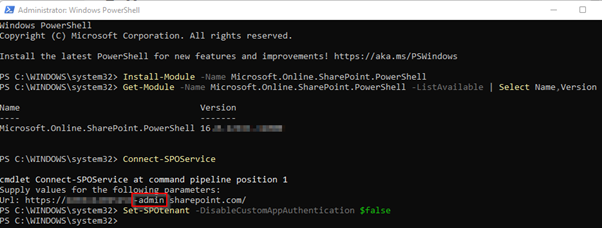
A global SharePoint administrator can enable this by running the following PowerShell commands (needs the latest SharePoint Online Management Shell for PowerShell):
For example:
-
Install SPO Management Shell from within Powershell (version 5.0 and higher)
PowerShellInstall-Module -Name Microsoft.Online.SharePoint.PowerShell
-
Connect to your SPO Service
PowerShellConnect-SPOService
-
When prompted connect to the Url of your SharePoint Admin site (Like https://<your-company>-admin.sharepoint.com), and login with your administrator credentials.
-
Enable Custom App Authentication by running the below PowerShell:
Warning
This step (and hence every step hereafter) is not possible anymore for new tenants as of November 1st, 2024. For more information see Microsoft announcement on: https://aka.ms/retirement/acs/support
PowerShellSet-SPOtenant -DisableCustomAppAuthentication $false
-
-
-
Resulting output should look similar to:
-
- Internal and external URL for SharePoint needs to be the same.
- If installing on Skype for Business 2019 server, then install Core v 6.5 or higher first.
Note
(Optional) Subsite creation can still be enabled in SharePoint Online. But beware, Microsoft is increasing limitations on the use of subsites, and discouraging its use. For more information about still allowing subsite creation please visit: Manage detailed site and subsite creation settings in the classic SharePoint admin center | Microsoft Learn
Step 2: Create new Site Collection(s)
Create a Site Collection where subsites are disabled (SharePoint Online, OneUCC model)
Time to execute: approx. 5 min.
Tip
A NEW quicker install method for creating OneUCC sites with AppOnly and certificate sites using PnP.Powershell and more restricted local permissions (selected sites only) can be found here: Creating a OneUCC Site using PnP.PowerShell
The model for SharePoint on Microsoft 365 without subsites requires each AnywhereNow UCC to be created and managed in its own Site Collection. (Available since UCC.Creator v8.2.0.7)

Note
Ucc.Creator was developed when, what is now called, a Teams site (classic experience) was the default or only choice. This manual has been written and kept up-to-date with that in mind.
It is also possible to create a Site as a Team site or Communication site, however some additional steps (disable "Deny Add and Customize Pages feature") will have to be taken and some Microsoft 365 resources will be created which may never be used (like a new mailbox per site and a new Microsoft 365 group) which may pollute your AD and further measures may need to be taken to clean these up Learn More
If you want to use a modern site, we suggest creating Team Site (without Microsoft 365 Group).
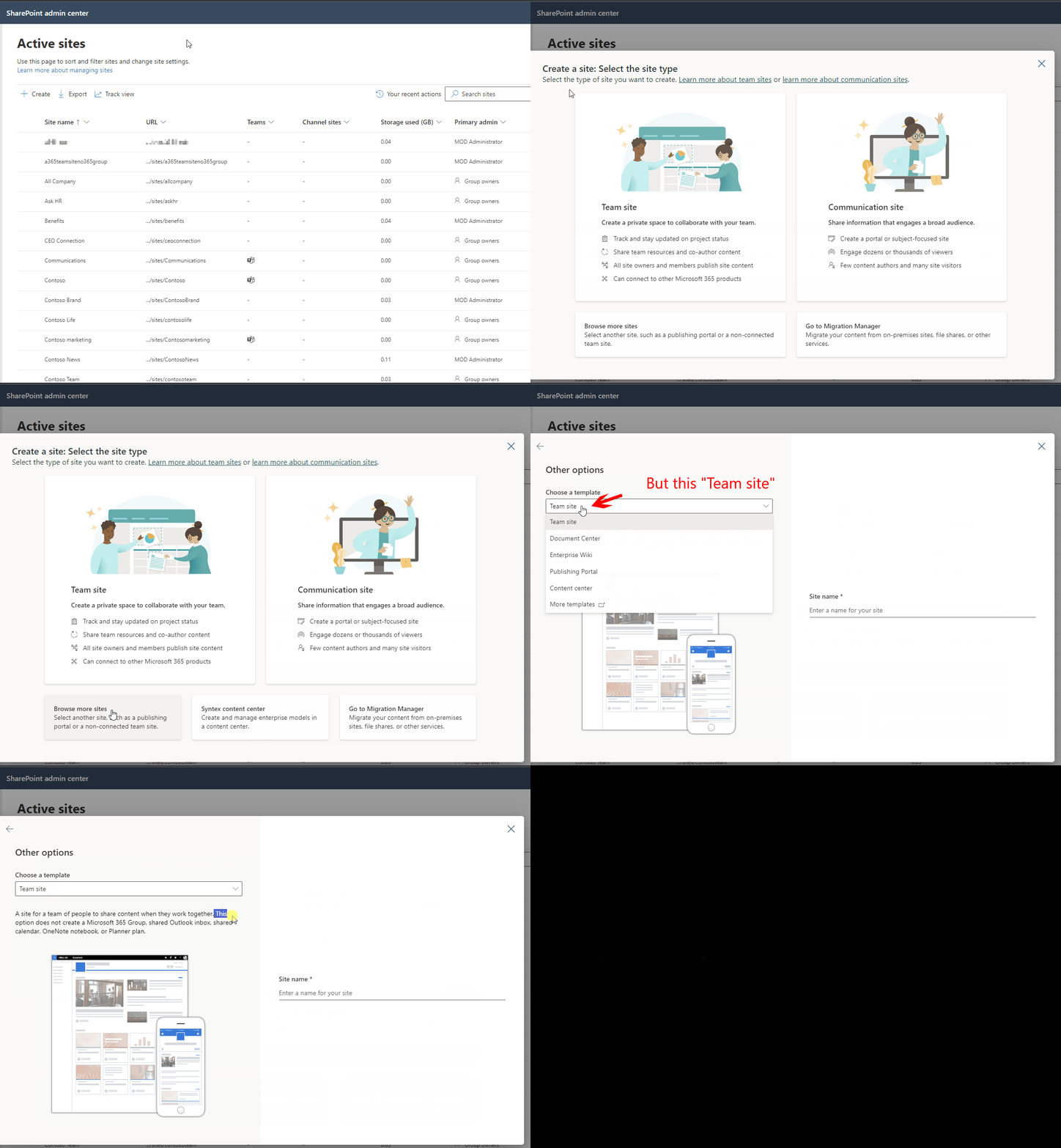
1. Create a new site
-
In “SharePoint admin center”
-
Navigate to “Active Sites”
-
Click “+ Create”
-
Click “Other options” (bottom of page)

2. Select a template
-
In “Other Options”
-
Expand “Choose a template” dropdown
-
Select “More Templates” (Next page will open in a new browser tab!)

3. Enter Site Collection details
-
Populate “Title” with the name of your UCC
-
Populate the “Web Site Address” with the name of your UCC (just small letters, numbers and hyphens)
-
Select “Teams Site (classic experience)” as template
-
Select the a correct “Timezone” for this site and UCC. (This will be used by the UCC Business Hours for example, see:Business Hours)
-
Select at least one Administrator account for this Site Collection

-
Click “OK”
-
The new Site Collection(s) will now be created and visible in the Active sites overview in the “SharePoint admin center”.

-
The URL column will display the direct URL of each new Site Collection (for your single UCC).
Tip
Share these URLs with the intended AnywhereNow UCC Manager(s) of your company.
Create a Site Collection where subsites are allowed (SharePoint Online, Legacy model)
Time to execute: approx. 5 min.
The legacy model for SharePoint Online with subsites allows each AnywhereNow UCC site to be created and managed in one Site Collection as a subsite per UCC.

Note
Ucc.Creator was developed when, what is now called, a Teams site (classic experience) was the default or only choice. This manual has been written and kept up-to-date with that in mind.
It is also possible to create a Site as a Team site or Communication site, however some additional steps (disable "Deny Add and Customize Pages feature") will have to be taken and some Microsoft 365 resources will be created which may never be used (like a new mailbox per site and a new Microsoft 365 group) which may pollute your AD and further measures may need to be taken to clean these up Learn More
If you want to use a modern site, we suggest creating Team Site (without Microsoft 365 Group).
1. Create a new site
-
In “SharePoint admin center”
-
Navigate to “Active Sites”
-
Click “+ Create”
-
Click “Other options” (bottom of page)
2. Select a template
-
In “Other Options”
-
Expand “Choose a template” dropdown
-
Select “More Templates” (Next page will open in a new browser tab!)
3. Enter Site Collection details
-
Populate “Title” with the name of your AnywhereNow Site Collection
-
Populate the “Web Site Address” with the name of your AnywhereNow Site Collection (just small letters and hyphens)
-
Select “Teams Site (classic experience)” as template
-
Select the a correct “Timezone” for this site and AnywhereNow Site Collection. (This will be used by the UCC Business Hours for example, see: Business Hours)
-
Select at least one Administrator account for this Site Collection
-
Click “OK”
-
The new Site Collection will now be created and visible in the Active sites overview in the “SharePoint admin center”.

-
The URL column will display the direct URL to the Site Collection (for your multiple UCC's).
Tip
Share this URLs with the intended AnywhereNow UCC Manager(s) of your company.
Create Site Collection on SharePoint Server (with subsites allowed, Legacy model):
Time to execute: approx. 15 min.
-
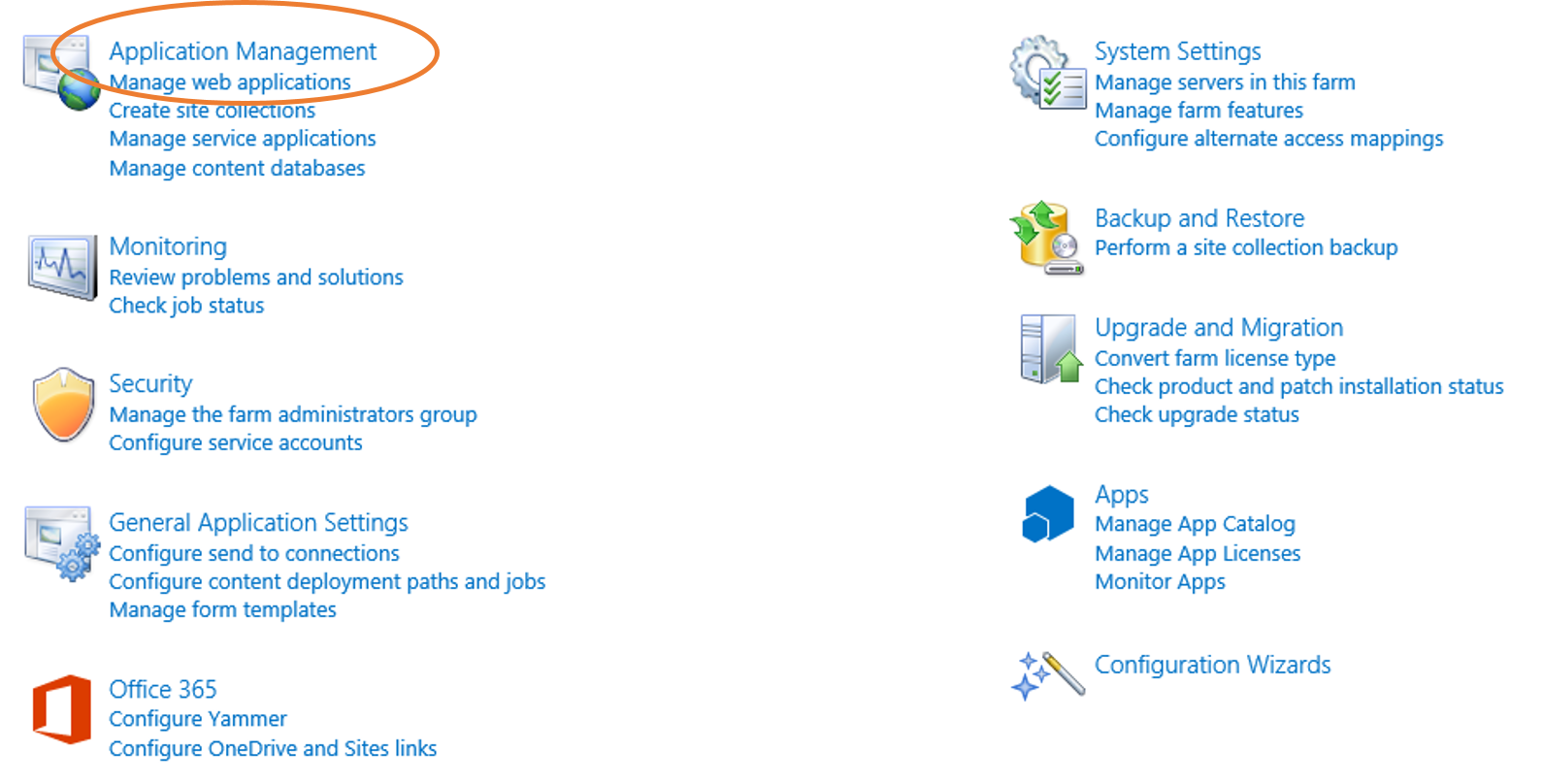
Open the SharePoint Central Admin (to choose from start)
-
Choose Application Management
-
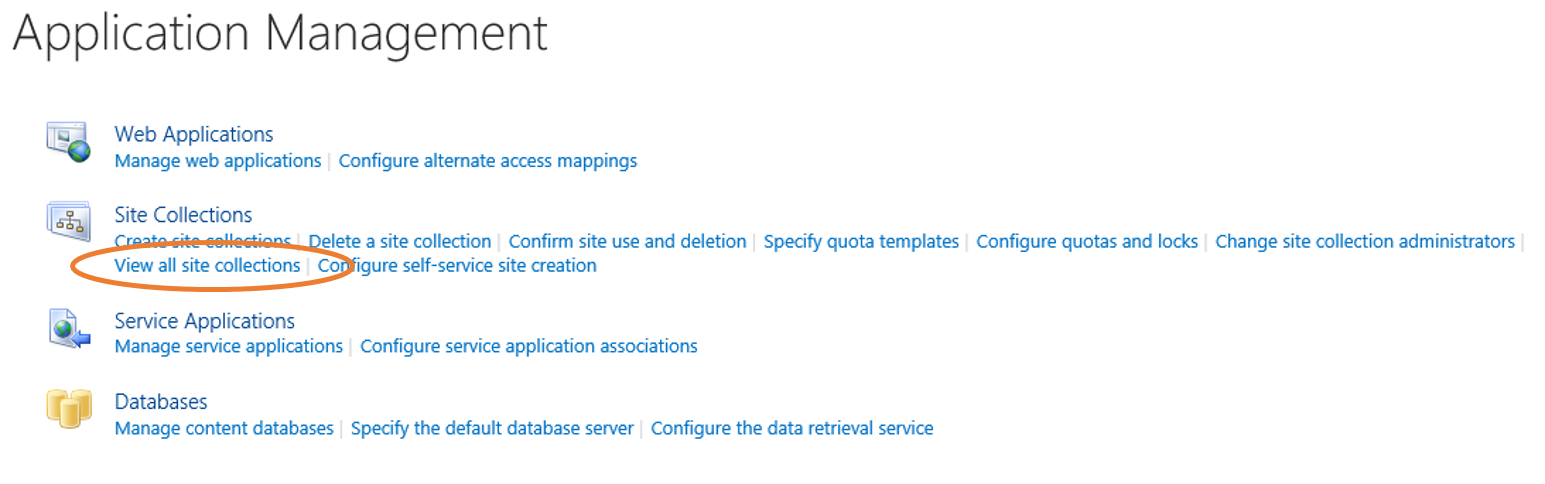
Choose View all site collections
-
See if there is a site collection you want to use, if not. Create one and continue with step 5.
-
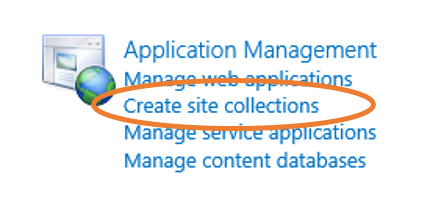
Go back to the Central Admin page and this time, choose "Create site collections"
-
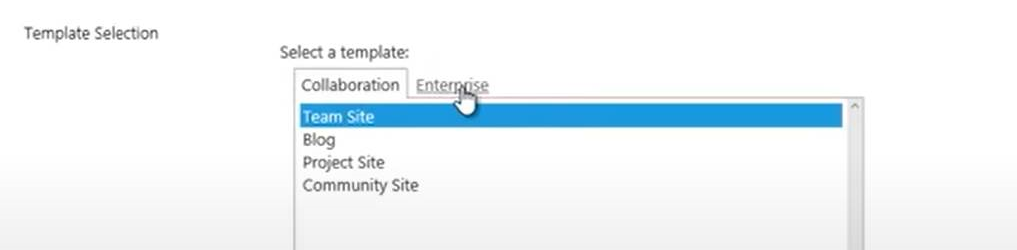
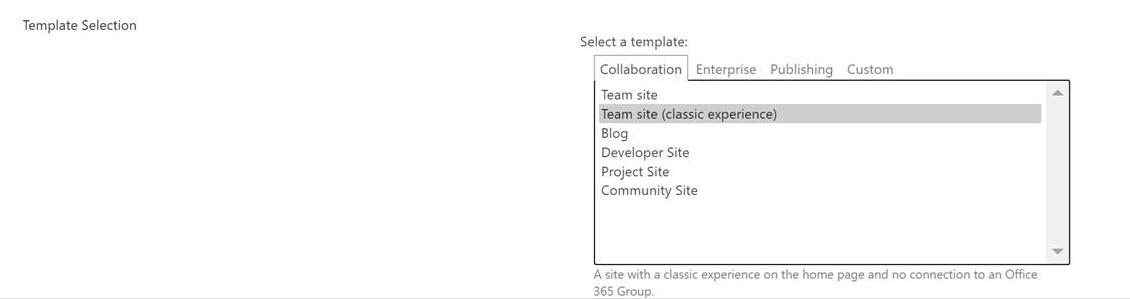
Fill in the details and follow the steps. But make sure you create a "Team Site" for SharePoint Server 2013 and 2016 or a "Team Site (classic experience)" for SharePoint Server 2019.
SharePoint Server 2013 / 2016
SharePoint Server 2019
-
Finished
Step 3: Generate Microsoft Entra ID App-Only Certificate and Grant Consent
Generate Microsoft Entra ID App-Only App, Certificate and Consent for the AnywhereNow Ucc.Creator
Time to execute: approx. 30 min.
Tip
A NEW quicker install method for creating OneUCC sites with AppOnly and certificate sites using PnP.Powershell and more restricted local permissions (selected sites only) can be found here: Creating a OneUCC Site using PnP.PowerShell
Note
To allow an application access to SharePoint Online, using Microsoft Entra ID App-Only with a certificate is Microsoft's preferred method. It allows for this single authentication method to allow an application (like AnywhereNow Ucc.Creator) to access all UCC Site Collections in your tenant. This is especially useful when opting for the OneUCC model (i.e. SubSites are disabled in your tenant) where you potentially have to build/maintain/update many separate site Collections.
Warning
The method described on this page allows you to create SharePoint site(s) and upload our template with your own App and certificate, as a prerequisite for creating one or more UCC's.
Please start by following Microsoft's instructions on setting up your Microsoft Entra ID AppOnly with certificate on: https://learn.microsoft.com/en-us/sharepoint/dev/solution-guidance/security-apponly-azuread
-
When a name is asked for the App registration requested on that article we suggest "AnywhereNow Ucc Site Creator".
-
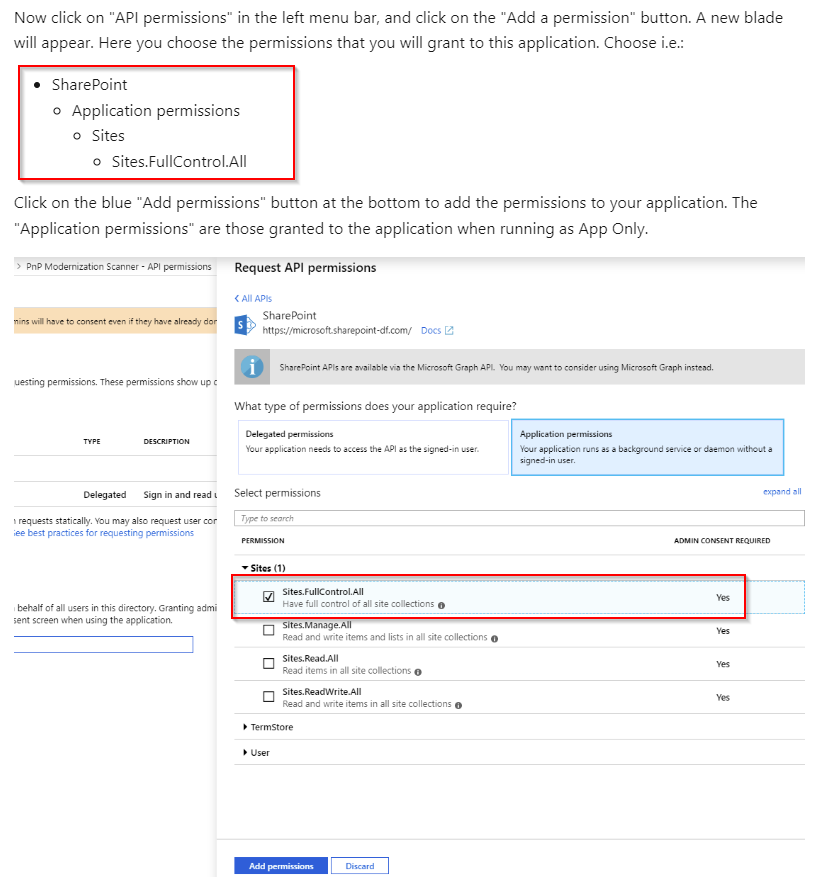
Where Application permission are requested please follow the example exactly (i.e. SharePoint, Application permissions, Sites, Sites.FullControl.All)
Note
Sites.FullControl.All is still required when using Subsites (aka the Legacy model. When using the OneUCC model Sites.Selected is allowed.)
-
Remember to copy and safeguard the ApplicationID
-
Remember to copy and safeguard the Password you entered during certificate creation (.pfx and .cer file).
-
Remember to copy and safeguard the certificate .pfx and .cer file.
-
You should know your Microsoft 365 TenantID
Step 4: Run AnywhereNow Site Collection Creator PowerShell script
Running AnywhereNow Site Collection Creator with subsites disabled (OneUCC model)
Time to execute: approx. 15 min.
A new Site Collection will have a several default components without AnywhereNow assets.

1. Adding AnywhereNow base Assets to your Site Collection
AnywhereNow site assets (images and JavaScript files) will be uploaded to the Site Collection and the UCC Creator List will be created.
Note
Installation files can be obtained from AnywhereNow or an authorized Partner.
Tip
When receiving the installer as a .zip file please check whether the .zip file is “Unblocked” in the file properties BEFORE extracting the installer
Warning
UCC.Creator 8.2.0.7 and later uses the latest PnP Powershell instead of SPO Management Shell used in earlier versions of UCC.Creator. Please check your installed Microsoft versions and latest updates if faced with issues running the scripts.
-
Extract UCC.Creator.v8.x.x.x.zip
-
Navigate to folder UCC.Creator.v8.x.x.x
-
Edit configuration.xml
-
SiteCollectionUrl = URL of the site collection
example: https://contoso.sharepoint.com/sites/ucc - SPversion = online, 2019, 2016, 2013 or foundation
Option 1: Using Username and Password (only available for SharePoint Server)
-
Username = Username site collection admin (Only for SharePoint Server)
-
Password = Password site collection admin (Only for SharePoint Server)
If Password encrypted ="True", encrypt the password by running "encryptpassword.ps1" script first. The PowerShell window should be executed with the credentials of the user that needs to use the encrypted password (i.e. the one running the ucc.creator script). -
Option 2 : Using Azure-AD-App and certificate (only available for SharePoint Online)
-
CertificateAppId = The Application ID of your Azure-AD-App with certificate, Learn More - Microsoft
-
CertificateTenantId = The TenantID of your SharePoint Online tenant.
-
CertificatePassword = The password of your certificate,
If CertificatePassword encrypted ="True", encrypt the password by using the included "encryptpassword.ps1" script. The PowerShell window should be executed on the machine that needs to use the encrypted password (i.e. the one running the Ucc.Creator script). -
CertificatePath = The path to the location where your certificate (.pfx) file is located on machine running this script.

-
-
Open PowerShell
-
Navigate to folder: UCC.Creator
-
Run "UCC.SiteCollection.Creator.ps1" and wait until the task is completed.

After Uploading the AnywhereNow Site Collection Assets, the Site Collection has more artifacts. Most important of which is the AnywhereNow UCC Creator list.

Running AnywhereNow Site Collection Creator with subsites allowed (Legacy model)
Time to execute: approx. 15 min.
A new Site Collection will have a several default components without AnywhereNow assets.

1. Adding AnywhereNow base assets to your Site Collection
AnywhereNow site assets (images and JavaScript files) will be uploaded to the Site Collection and the UCC Creator List will be created.
Note
Installation files can be obtained from AnywhereNow or an authorized Partner.
Tip
When receiving the installer as a .zip file please check whether the .zip file is “Unblocked” in the file properties BEFORE extracting the installer package.
Warning
UCC.Creator 8.2.0.7 and later uses the latest PnP Powershell instead of SPO Management Shell used in earlier versions of UCC.Creator. Please check your installed Microsoft versions and latest updates if faced with issues running the scripts.
-
Extract UCC.Creator.v8.x.x.x.zip
-
Navigate to folder UCC.Creator.v8.x.x.x
-
Edit configuration.xml
-
SiteCollectionUrl = URL of the site collection
example: https://contoso.sharepoint.com/sites/ucc -
SPversion = online, 2019, 2016, 2013 or foundation
Option 1: Using Username and Password (only available for SharePoint Server)
-
Username = Username site collection admin (Only for SharePoint Server)
-
Password = Password site collection admin (Only for SharePoint Server)
If Password encrypted ="True", encrypt the password by running "encryptpassword.ps1" script first. The PowerShell window should be executed with the credentials of the user that needs to use the encrypted password (i.e. the one running the ucc.creator script). -
Option 2 : Using Azure-AD-App and certificate (only available for SharePoint in Microsoft 365)
-
CertificateAppId = The Application ID of your Azure-AD-App with certificate, Learn More - Microsoft
-
CertificateTenantId = The TenantId of your SharePoint Online tenant.
-
CertificatePassword = The password of your certificate,
If CertificatePassword encrypted ="True", encrypt the password by using the included "encryptpassword.ps1" script. The PowerShell window should be executed on the machine that needs to use the encrypted password (i.e. the one running the ucc.creator script). -
CertificatePath = The path to the location where your certificate (.pfx) file is located on machine running this script.
-
-
Open PowerShell
-
Navigate to folder: UCC.Creator.v8.x.x.x
-
Run "UCC.SiteCollection.Creator.ps1 -useSubsites" and wait until the task is completed.

After Uploading the AnywhereNow Site Collection Assets, the Site Collection has more artifacts. Most important of which is the AnywhereNow UCC Creator list. (Notice the capability to add subsites)

Step 5: Run AnywhereNow UCC (Site) Creator PowerShell script
Running AnywhereNow UCC.Creator with subsites disabled (OneUCC model)
Time to execute: approx. 20 min.
Note
Without subsites it is only possible to use one item in the Ucc.Creator list. Multiple items can be added, but will never be processed.
Warning
UCC.Creator 8.2.0.7 and later uses the latest PnP Powershell instead of SPO Management Shell used in earlier versions of UCC.Creator. Please check your installed Microsoft versions and latest updates if faced with issues running the scripts.
1. Add UCC details to the UCC Creator List:
-
Go to the Site Collection that you have created
-
Navigate to Site Contents
-
Click on the list AnywhereNow UCC Creator
-
Enter values for the form fields and click on Save.

Note
If the UCC_Creator.ps1 is scheduled to run automatically as a scheduled task, these steps could be skipped.
-
Open the regular PowerShell command window, run UCC.Creator.ps1. It connects to the AnywhereNow UCC Creator list with the credentials provided in configuration.xml and creates and populates items in the AnywhereNow UCC Site Collection for the UCC you just added to the list.

-
As you can see the site is created in the root of the Site Collection. (Note: UCC lists like "Agents" are in the same root/site as the "AnywhereNow UCC Creator" list):

-
If you go back to the list you will see that the added item has a URL now.
The Provision Status is changed to Provisioned.

Click on Site URL to open the UCC that is created.
Tip
Share this URL with the intended AnywhereNow UCC Manager(s) of your company.
Running AnywhereNow UCC.Creator with subsites allowed (Legacy model)
Time to execute: approx. 20 min.
1. Add UCC details to the UCC Creator List:
-
Go to the site collection that you have created
-
Navigate to Site Contents
-
Click on the list AnywhereNow UCC Creator
-
Enter values for the form fields and click on Save. (Notice the existence of a "Parent" field to allow for sub-subsite models)

Note
If the UCC_Creator.ps1 is scheduled to run automatically, these steps can be skipped.
Warning
UCC.Creator 8.2.0.7 and later uses the latest PnP Powershell instead of SPO Management Shell used in earlier versions of UCC.Creator. Please check your installed Microsoft versions and latest updates if faced with issues running the scripts.
-
Open the regular PowerShell command window, run UCC.Creator.ps1 -useSubsites. It connects to the AnywhereNow UCC Creator site with the credentials provided in configuration.xml and a whole new UCC SharePoint subsite is created from the item you just added to the list.

As you can see the sub site is created:


-
If you go back to the list you will see that the added item has a URL now.
The Provision Status is changed to Provisioned. (Notice a second site request is pending)

Click on Site URL to open the UCC that is created.
Tip
Share this URL with the intended AnywhereNow UCC Manager(s) of your company.
.