Configure Sign-in for WebAgent
To enable your organization to the WebAgent, you need to have completed the following steps.
Prerequisites
Configuration prerequisites
Note
When using the WebAgent make sure your browser is compatible with your user platform, see: WebAgent Browser Compatibility Overview
-
Before getting started make sure your account (domain name, like "@contoso.com") is enabled by AnywhereNow to login on the WebAgent. To get this processed, contact your AnywhereNow contact or partner.
Microsoft 365 – settings
When using Microsoft 365 and Teams, grant the appropriate permissions for WebAgent with the application that matches your Dialogue Cloud Neo connect model.
Grant admin consent
Grant admin consent for your organization:
As an administrator you can grant consent on behalf of all users in this directory, ensuring that each end user will not be required to consent when using the application for the first time. Use the consent link that matches your Dialogue Cloud Neo connect model, and open the URL in a browser with a global admin account.
- Dialogue Cloud Neo (Connect)
- Dialogue Cloud Neo (Unify)
Use this consent URL for Dialogue Cloud Neo (Connect) deployments.
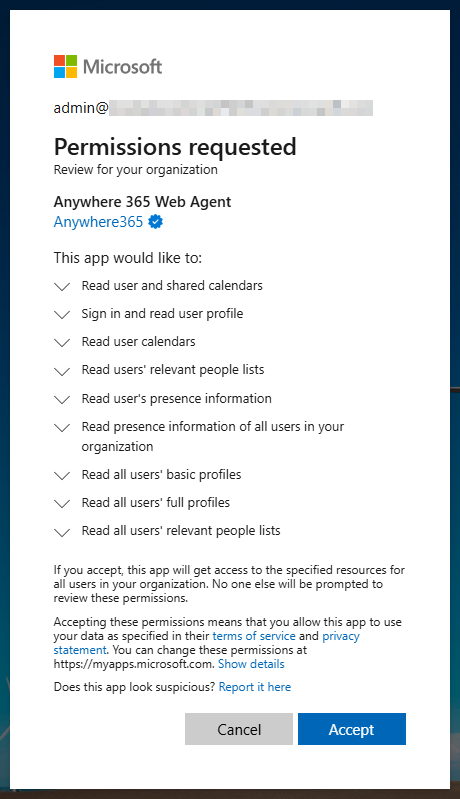
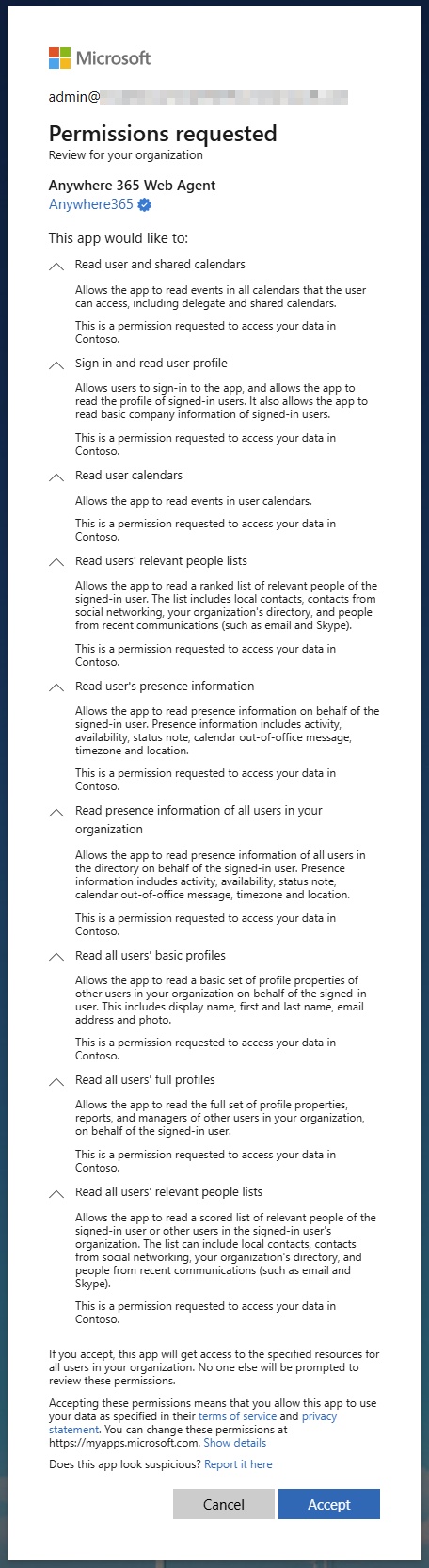
Preview Requested Permissions
-
Preview collapsed and expanded consent list:
-
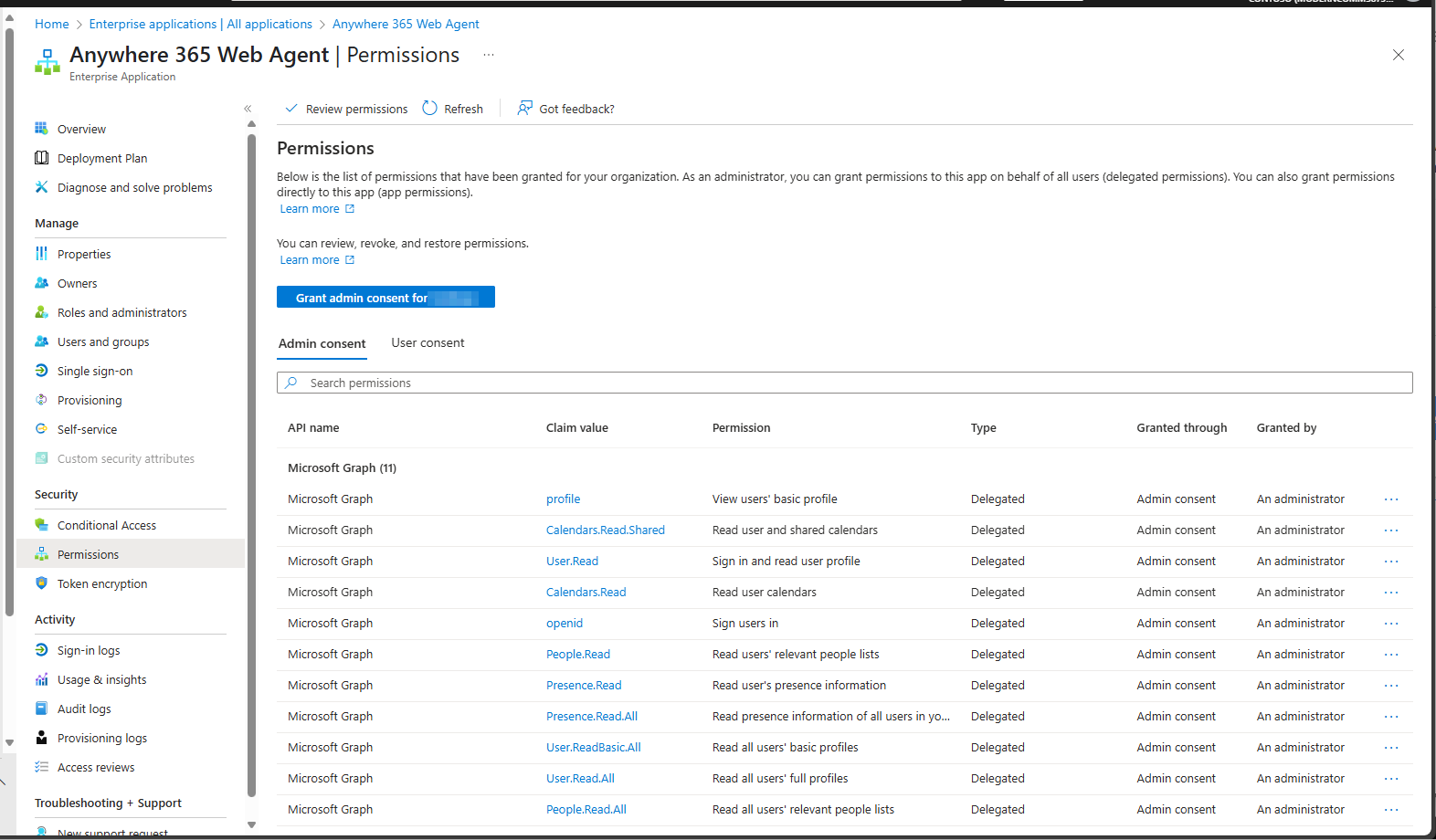
Preview Azure granted permissions list:
https://login.microsoftonline.com/common/adminconsent?client_id=74d56274-d17b-4a8d-8e4f-fa424af82961&redirect_uri=https%3A%2F%2Fwebagent.anywhere365.io%2F
Or consent with this button: Consent
These are the permissions asked for to the Administrator for Dialogue Cloud Neo (Connect), when they consent on behalf of the organization:
Active Permissions
Maintain access to data you have given it access to
Description: Allows the app to see and update the data you gave it access to, even when you are not currently using the app. This does not give the app any additional permissions.
Why is this required? This allows the WebAgent to keep signing you in.
View your basic profile
Description: Allows the app to see your basic profile (name, picture, user name)
Why is this required? To allow the WebAgent to sign you in and to show basic information like displayname and photo.
Permission name: Microsoft Graph / profile
Sign in and read user profile
Description: Allows users to sign-in to the app, and allows the app to read the profile of signed-in users. It also allows the app to read basic company information of signed-in users.
Why is this required? To allow the WebAgent to sign you in and to show basic information like displayname and photo.
Permission name: Microsoft Graph / User.Read
Read your relevant people list
Description: Allows the app to read a list of people in the order that's most relevant to you. This includes your local contacts, your contacts from social networking, people listed in your organization's directory, and people from recent communications.
Why is this required? To populate the contacts list and lets you search for contacts.
Permission name: Microsoft Graph / People.Read
Read all users' basic profiles
Description: Allows the app to read a basic set of profile properties of other users in your organization on your behalf. Includes display name, first and last name, email address and photo.
Why is this required? To allow the WebAgent to load additional information about an user, for example Business Phone, Mobile and the photo.
Permission name: Microsoft Graph / User.ReadBasic.All
Read all users' full profiles
Note
This permission will be used starting from DC2024.02 and in all subsequent versions. Since the WebAgent utilizes a single enterprise application, this permission applies to all A bundle is a fixed combination of our software platform elements of very specific versions. These are designed and tested to optimally work together to assure their intended function and interoperability. versions.
Description: Allows the app to read the full set of profile properties, reports, and managers of other users in your organization, on behalf of the signed-in user.
Why is this required? To allow the WebAgent to search on additional information about an user, specifically on department and job title.
Permission name: Microsoft Graph / User.Read.All
Read your presence information
Description: Allows the app to read your presence information on your behalf. Presence information includes activity, availability, status note, calendar out-of-office message, timezone and location.
Why is this required? To present your presence information into the WebAgent.
Permission name: Microsoft Graph / Presence.Read
Read presence information of all users in your organization
Description: Allows the app to read presence information of all users in the directory on your behalf. Presence information includes activity, availability, status note, calendar out-of-office message, timezone and location.
Why is this required? To show you the presence of other users in the contact list.
Permission name: Microsoft Graph / Presence.Read.All
Read your calendars
Description: Allows the app to read events in your calendars.
Why is this required? To allow the WebAgent show your calendars events.
Permission name: Microsoft Graph / Calendars.Read
Read calendars you can access
Description: Allows the app to read events in all calendars that you can access, including delegate and shared calendars.
Why is this required? To allow the WebAgent show calendars events shared to you.
Note
You need "Can view all details" permission on the shared calendar.
Permission name: Microsoft Graph / Calendars.Read.Shared
For Dialogue Cloud Neo (Unify), grant consent to the regional front-end enterprise application used by WebAgent and Dialogue Workspace.
| Region | Consent link |
|---|---|
| GWC | |
| APAC | |
| NORA |
These are the permissions asked for to the Administrator for Dialogue Cloud Neo (Unify), when they consent on behalf of the organization:
Active Permissions
Manage Teams calls
Description: Allows the app to manage Teams calls through Azure Communication Services.
Why is this required? To allow WebAgent to handle call controls for Dialogue Cloud Neo (Unify).
Permission name: Azure Communication Services / Teams.ManageCalls (Delegated)
Manage Teams chats
Description: Allows the app to manage Teams chats through Azure Communication Services.
Why is this required? To support the Azure Communication Services communication session used by WebAgent for Dialogue Cloud Neo (Unify).
Permission name: Azure Communication Services / Teams.ManageChats (Delegated)
Manage Teams extension calls
Description: Allows the app to manage calls that use Microsoft Teams Phone Extensibility.
Why is this required? To allow WebAgent to handle call controls through the Dialogue Cloud Neo (Unify) connect model.
Permission name: Azure Communication Services / Teams.Extension.ManageCalls (Delegated)
Read your calendars
Description: Allows the app to read events in your calendars.
Why is this required? To allow WebAgent to show your calendar events.
Permission name: Microsoft Graph / Calendars.Read (Delegated)
Read calendars you can access
Description: Allows the app to read events in all calendars that you can access, including delegate and shared calendars.
Why is this required? To allow WebAgent to show calendar events shared to you.
Note
You need "Can view all details" permission on the shared calendar.
Permission name: Microsoft Graph / Calendars.Read.Shared (Delegated)
Sign users in
Description: Allows the app to sign in users with their organizational account.
Why is this required? To allow WebAgent to sign users in.
Permission name: Microsoft Graph / openid (Delegated)
Read your relevant people list
Description: Allows the app to read a list of people in the order that's most relevant to you. This includes your local contacts, your contacts from social networking, people listed in your organization's directory, and people from recent communications.
Why is this required? To populate the contacts list and lets you search for contacts.
Permission name: Microsoft Graph / People.Read (Delegated)
Read your presence information
Description: Allows the app to read your presence information. Presence information includes activity, availability, status note, calendar out-of-office message, timezone and location.
Why is this required? To present your presence information in WebAgent.
Permission name: Microsoft Graph / Presence.Read (Delegated)
Read presence information of all users in your organization
Description: Allows the app to read presence information of all users in the directory. Presence information includes activity, availability, status note, calendar out-of-office message, timezone and location.
Why is this required? To show you the presence of other users in the contact list.
Permission name: Microsoft Graph / Presence.Read.All (Delegated)
Read and write presence information
Description: Allows the app to read and write presence information.
Why is this required? To allow WebAgent to update presence information for Dialogue Cloud Neo (Unify).
Permission name: Microsoft Graph / Presence.ReadWrite (Delegated)
View your basic profile
Description: Allows the app to see your basic profile (name, picture, user name).
Why is this required? To allow WebAgent to sign you in and to show basic information like display name and photo.
Permission name: Microsoft Graph / profile (Delegated)
Sign in and read user profile
Description: Allows users to sign in to the app, and allows the app to read the profile of signed-in users. It also allows the app to read basic company information of signed-in users.
Why is this required? To allow WebAgent to sign you in and to show basic information like display name and photo.
Permission name: Microsoft Graph / User.Read (Delegated)
Read all users' full profiles
Description: Allows the app to read the full set of profile properties, reports, and managers of other users in your organization.
Why is this required? To allow WebAgent to search on additional information about a user, specifically on department and job title.
Permission name: Microsoft Graph / User.Read.All (Delegated)
Read all users' basic profiles
Description: Allows the app to read a basic set of profile properties of other users in your organization. Includes display name, first and last name, email address and photo.
Why is this required? To allow WebAgent to load additional information about a user, for example business phone, mobile phone, and photo.
Permission name: Microsoft Graph / User.ReadBasic.All (Delegated)